Bulk actions and scheduled maintenance

Stop Making the Same Change One PBX at a Time

Use a batchable action when the same operation needs to run across several systems. For work inside one PBX, select the users or phones you want to change and use the actions available for that selection.

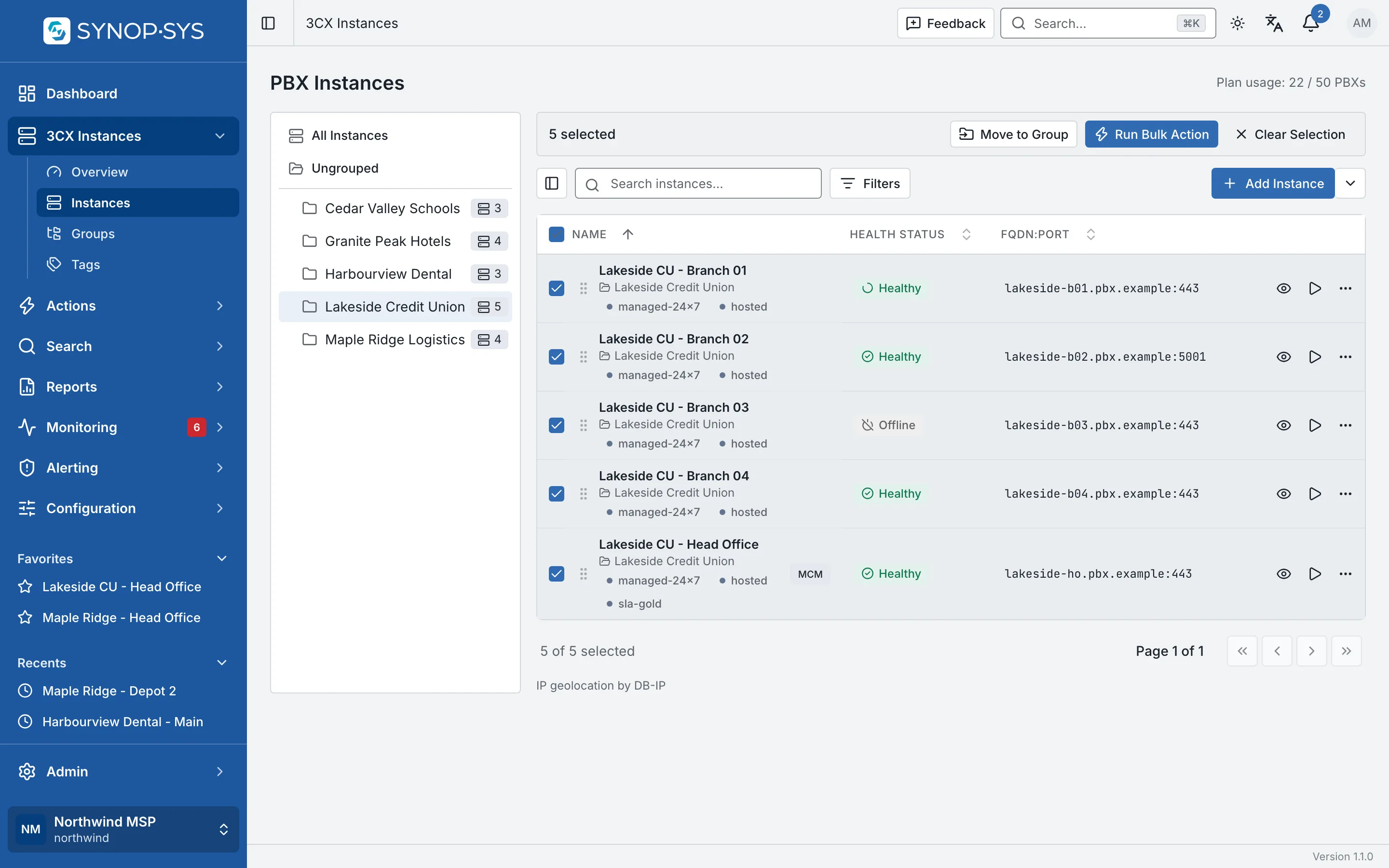
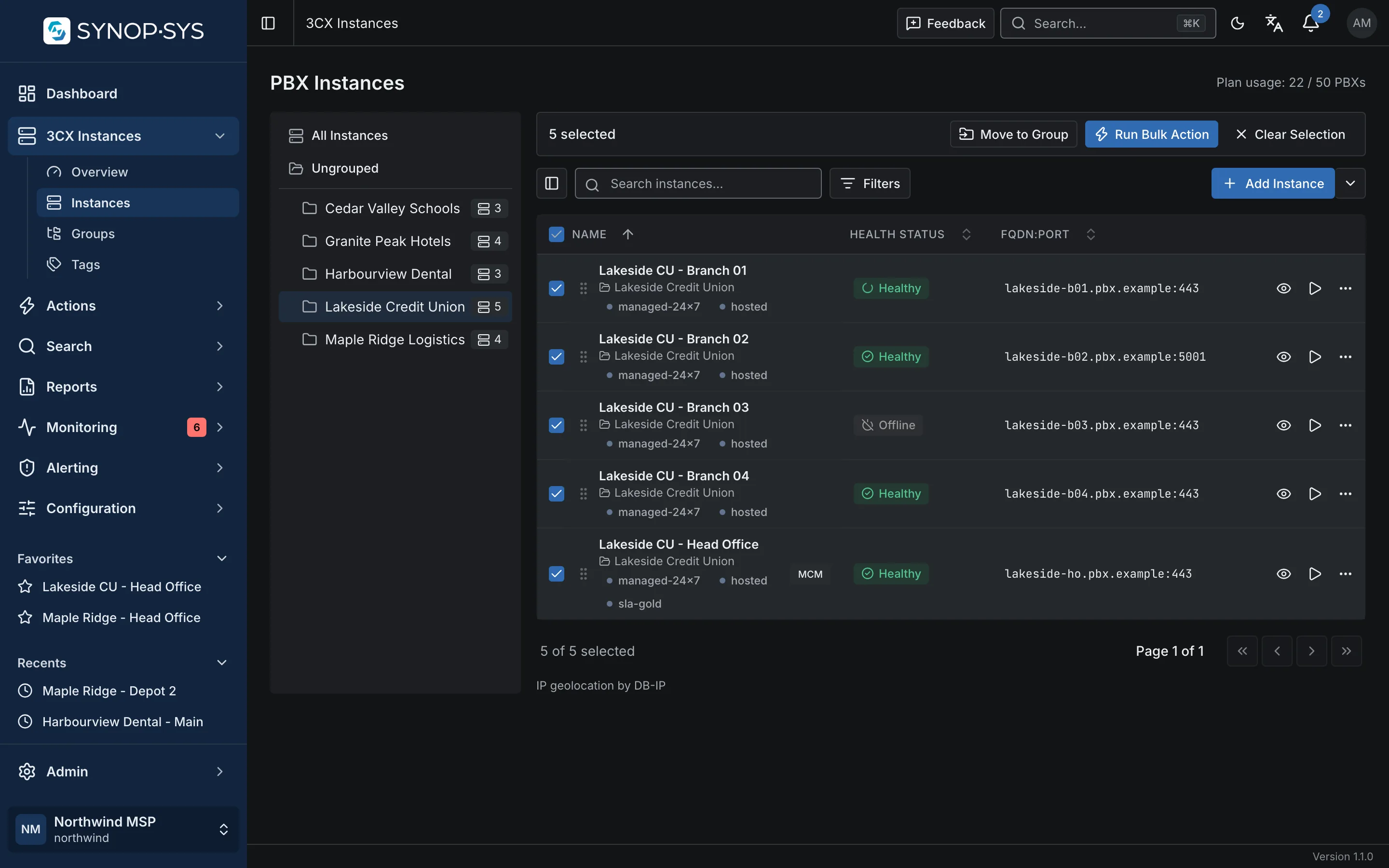
Five PBXs selected; the bulk bar shows the count and offers Run Bulk Action. Five PBXs selected; the bulk bar shows the count and offers Run Bulk Action.
Five PBXs selected; the bulk bar shows the count and offers Run Bulk Action.Open full imageOpen full image

Across the Fleet: Select, Configure, Inspect the Results

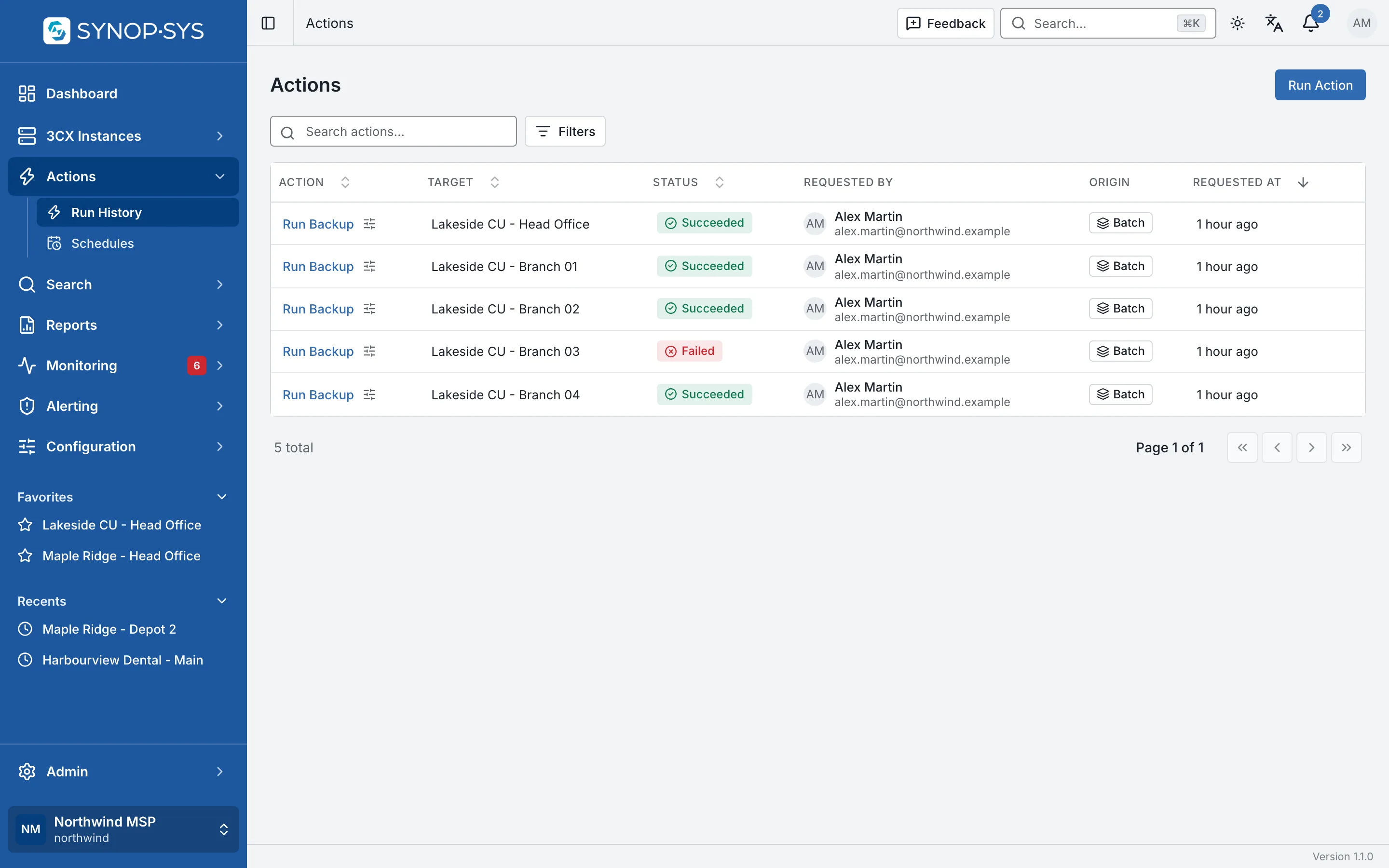
Fleet actions create a separate result for each target. Open the batch in Run History to see which PBXs succeeded and inspect any failed run before deciding what to do next.

1

Select the PBXs

Select instances in the fleet table, or build a target scope from instances, groups and tags.

Five selected rows and the bulk bar. Five selected rows and the bulk bar.
Five selected rows and the bulk bar.Open full imageOpen full image
2

Choose the action

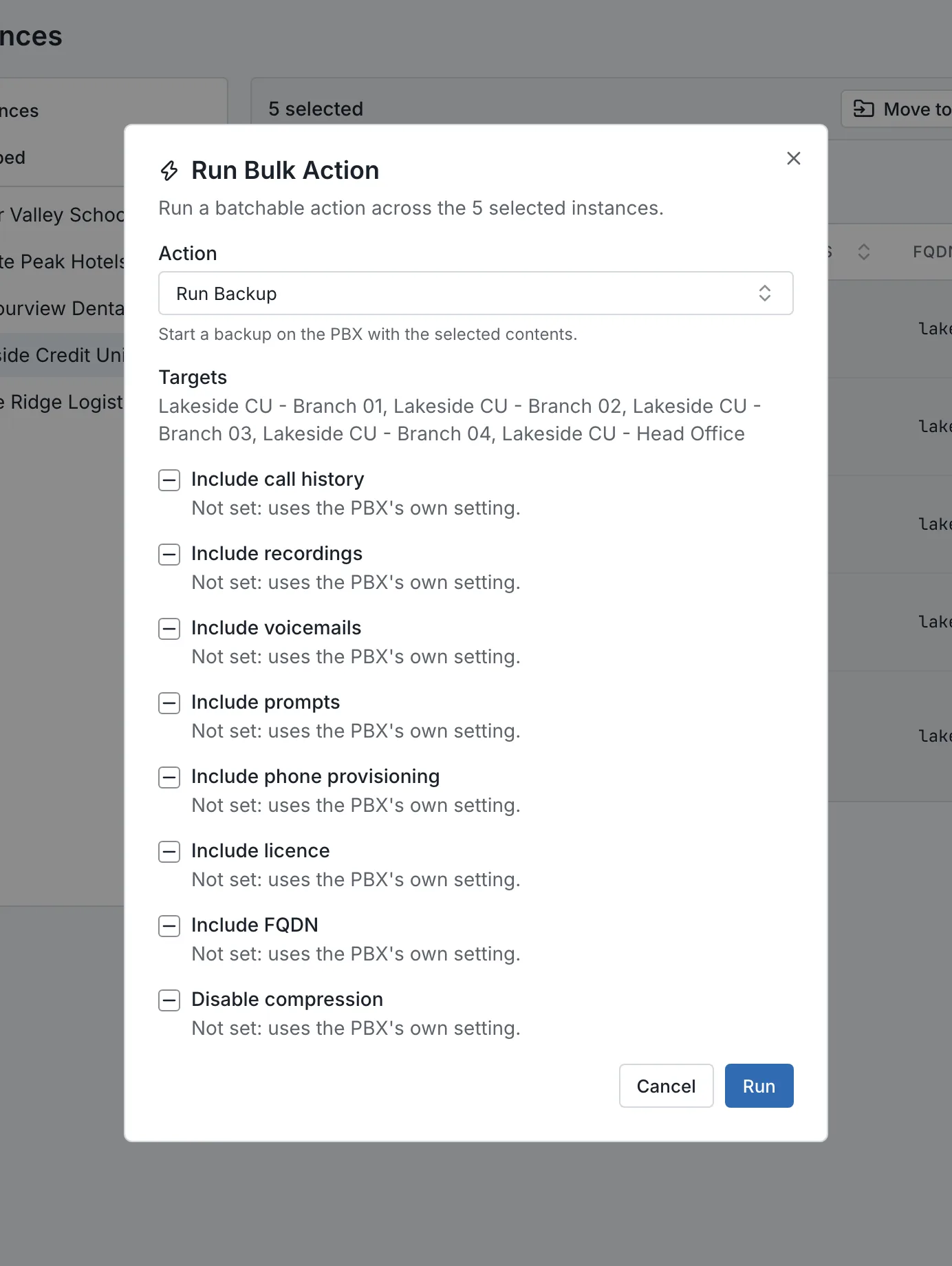
The available actions follow the selection and your permissions. Confirmation appears when the action requires it.

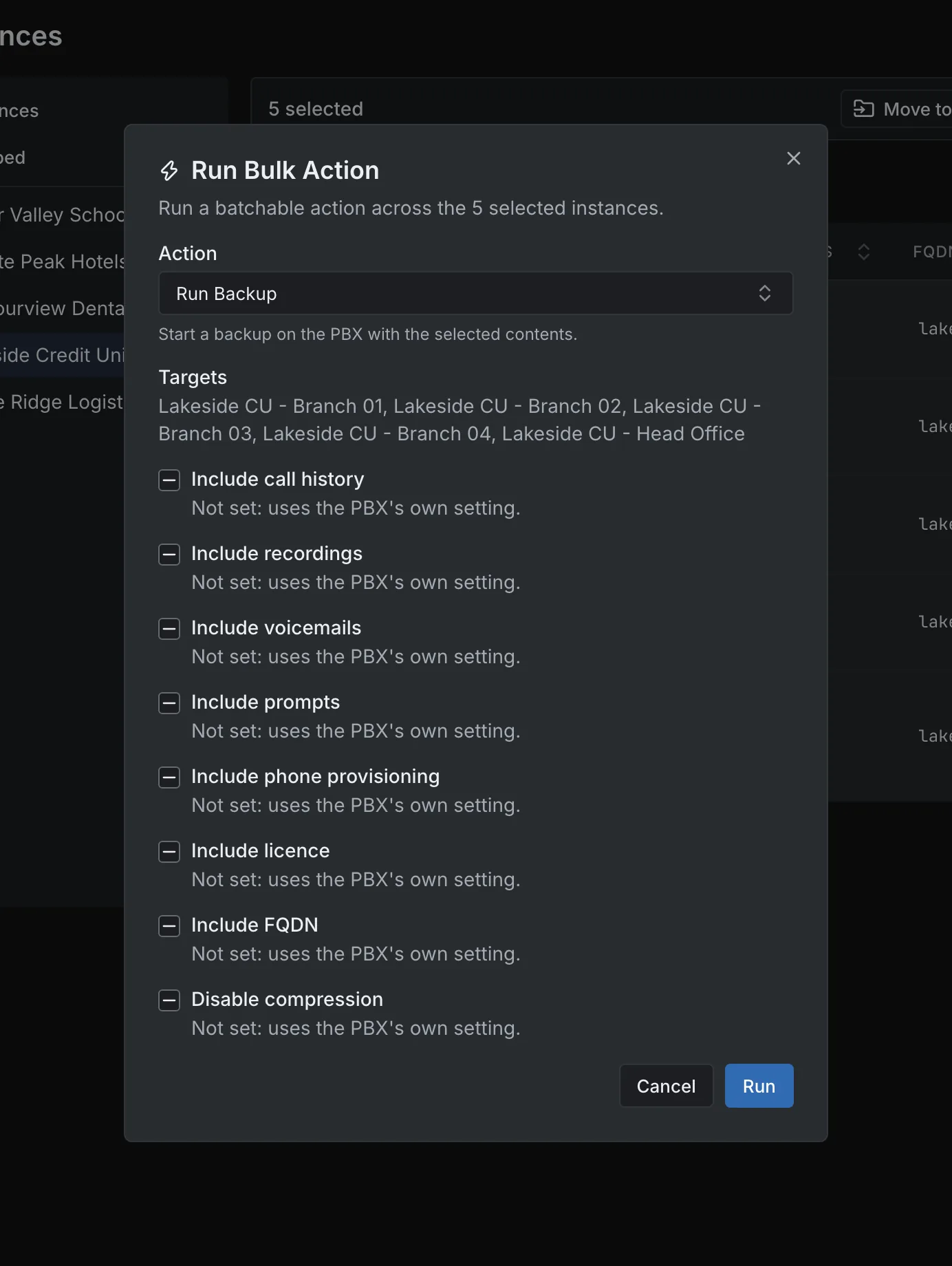
Run Bulk Action: Run Backup with its contents and the five targets (top of the dialog). Run Bulk Action: Run Backup with its contents and the five targets (top of the dialog).
Run Bulk Action: Run Backup with its contents and the five targets (top of the dialog).Open full imageOpen full image
3

Inspect the results

One row per PBX in Run History; open a failed run to read the error and its parameters.

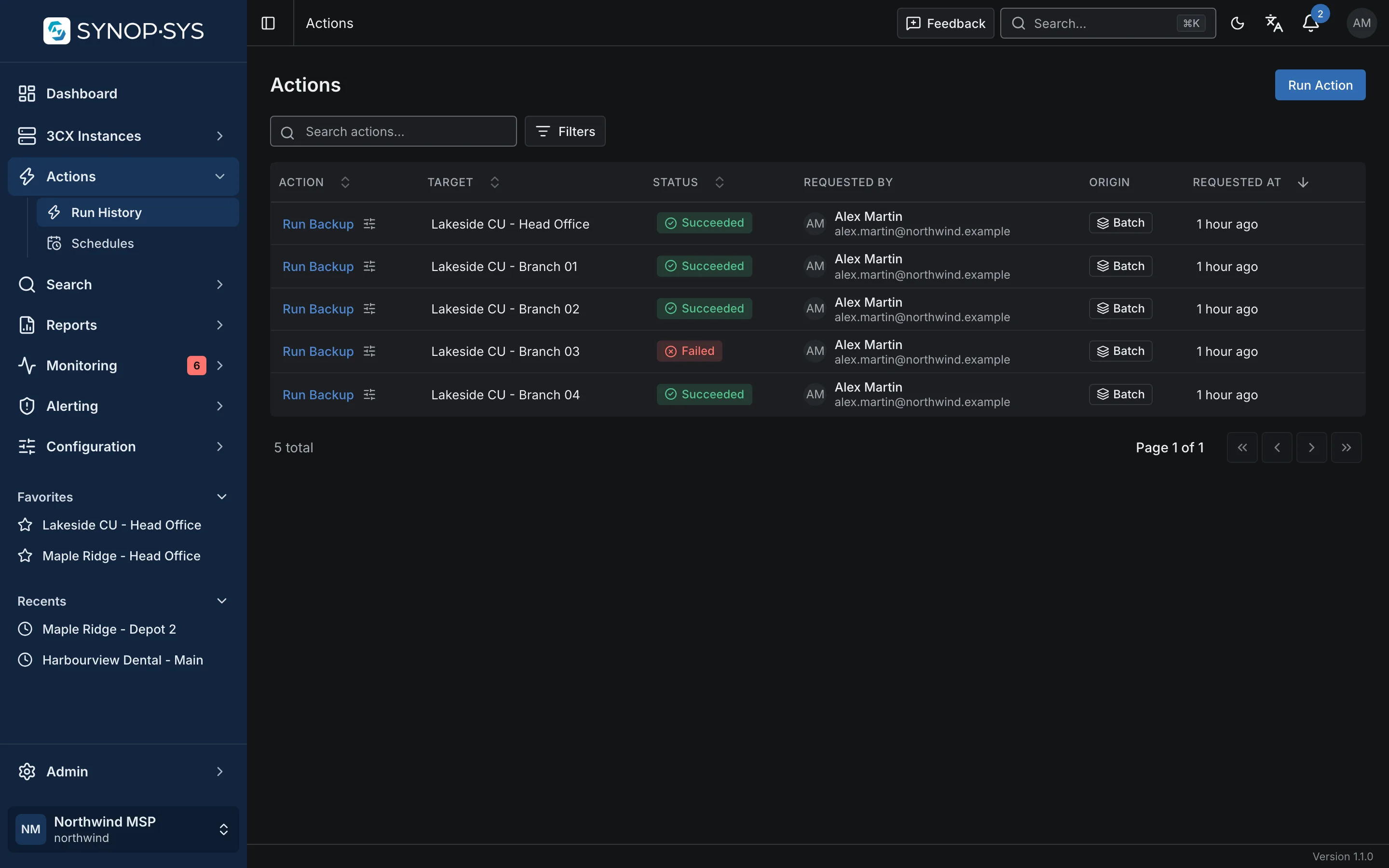
The batch in Run History: four succeeded, one failed. The batch in Run History: four succeeded, one failed.
The batch in Run History: four succeeded, one failed.Open full imageOpen full image

Check What Happened on Each System

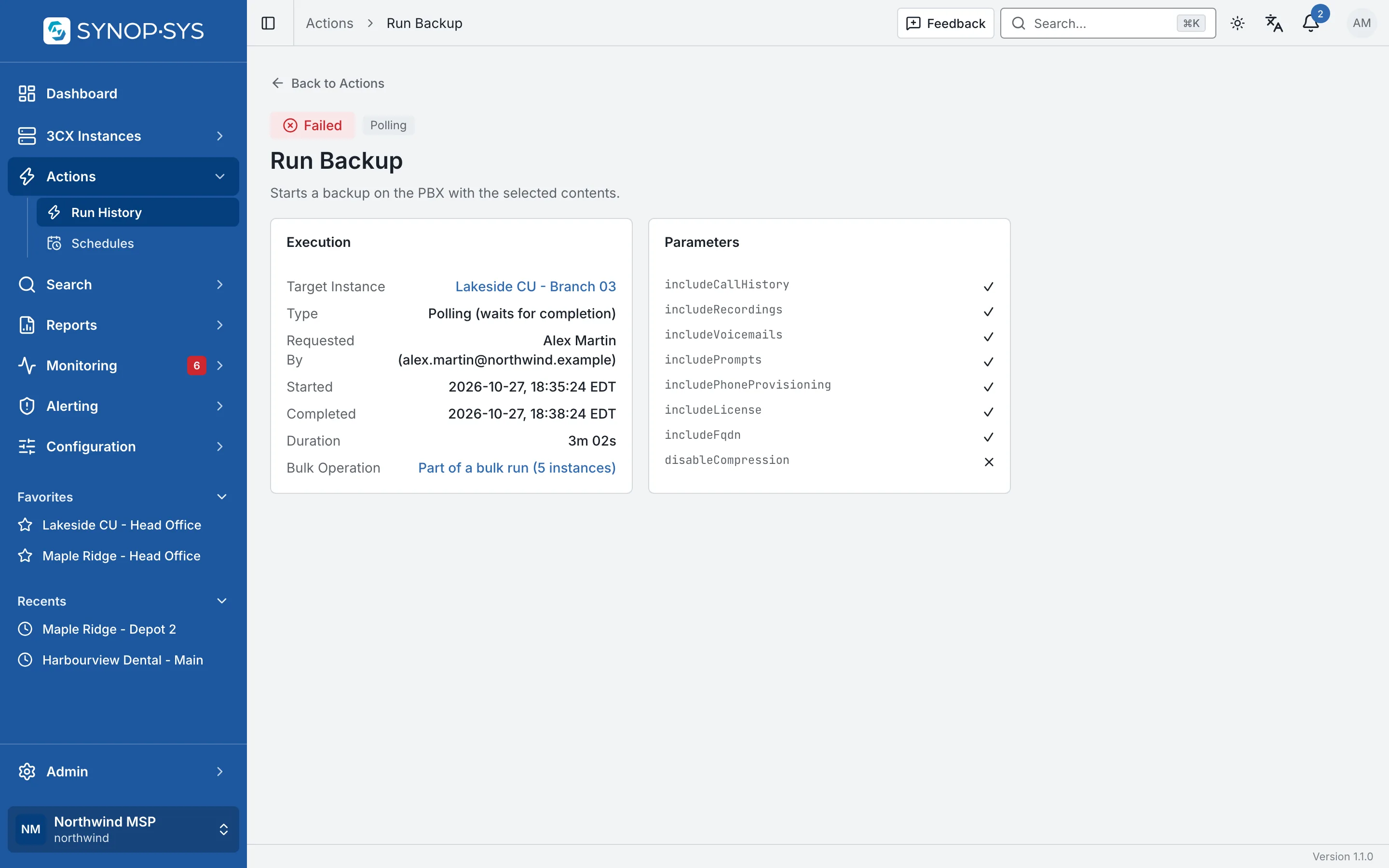
A failed leg keeps its own record: the target, the parameters that were sent, the error returned by the PBX and the batch it belonged to. Nothing is retried silently.

Not every action supports multiple PBXs. The Run Bulk Action picker lists only batchable actions.
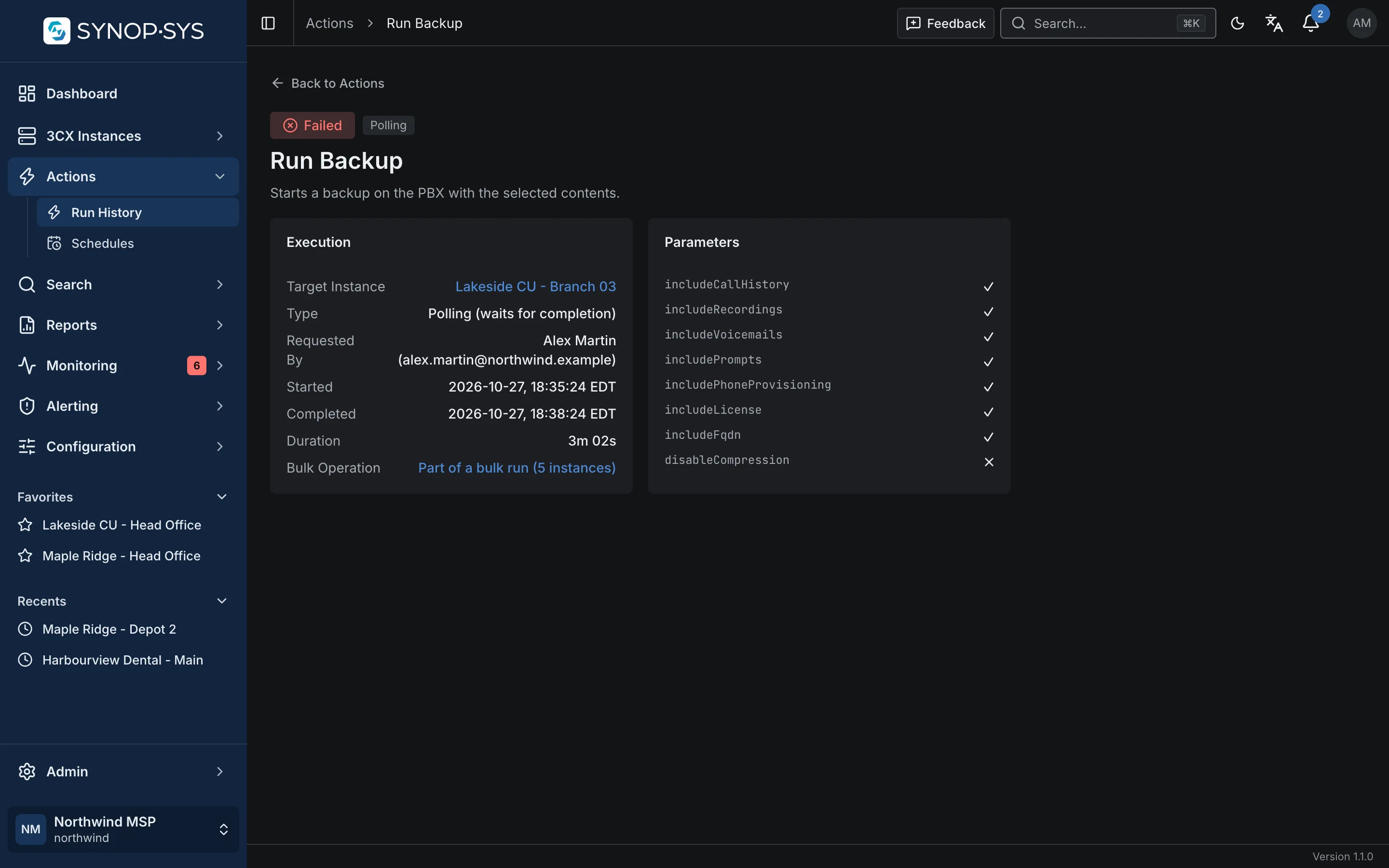
The failed leg: Lakeside CU - Branch 03 did not respond within 60 seconds; the parameters are recorded with it. The failed leg: Lakeside CU - Branch 03 did not respond within 60 seconds; the parameters are recorded with it.
The failed leg: Lakeside CU - Branch 03 did not respond within 60 seconds; the parameters are recorded with it.Open full imageOpen full image

Inside One PBX: Selected Users, Selected Phones

The selection stays within that instance. Options and results are reported per object.

Users

Change Selected Users Inside One PBX

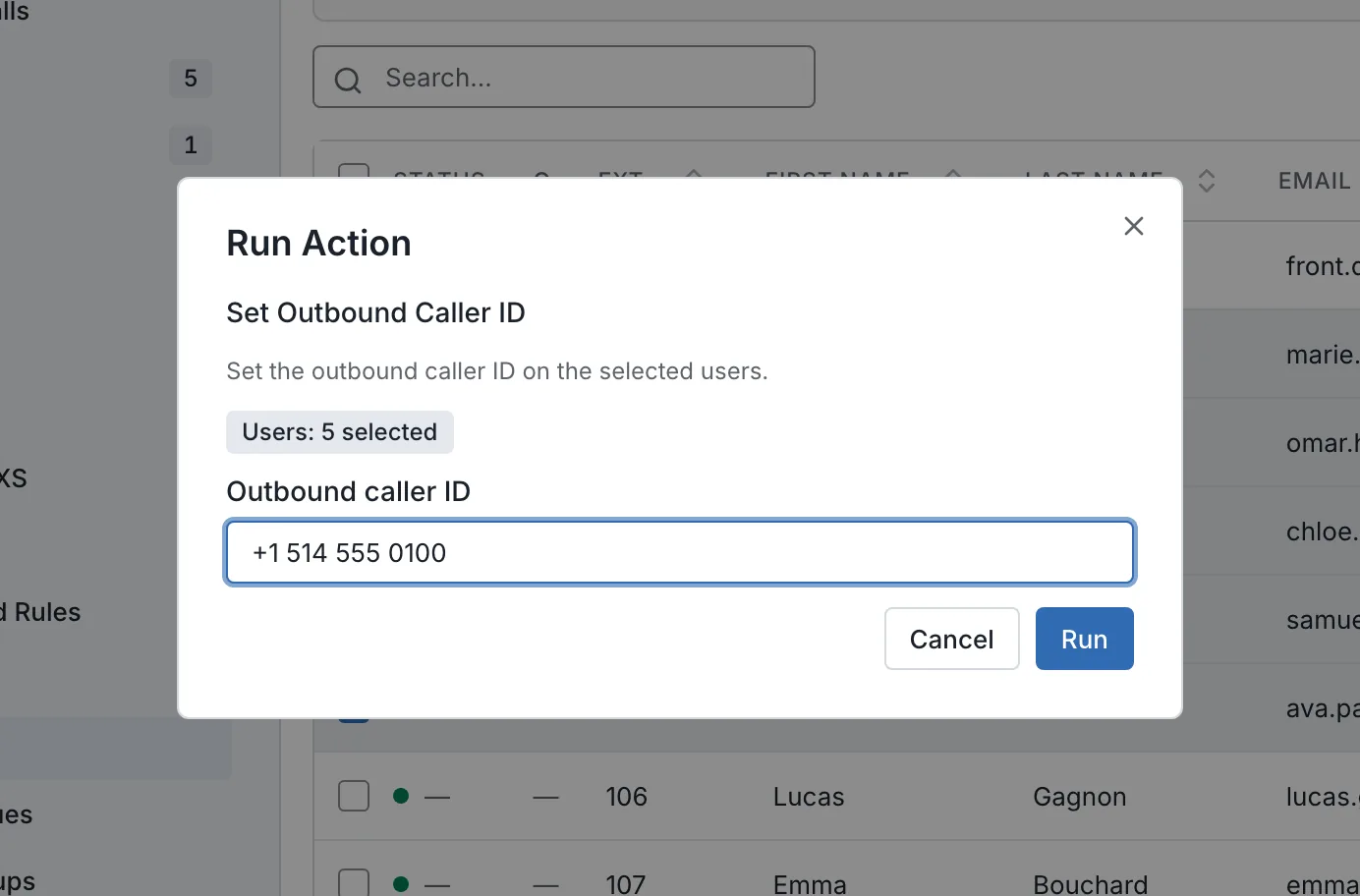
Select the extensions that need an update, then use a specific operation such as Set Outbound Caller ID or Change Department. The PBX name stays in view; the operation targets those users and nothing else.

  • Set Outbound Caller ID, Change Department, Set Status, enable or disable
  • Each run is recorded with its origin in the PBX write audit
See the PBX write audit
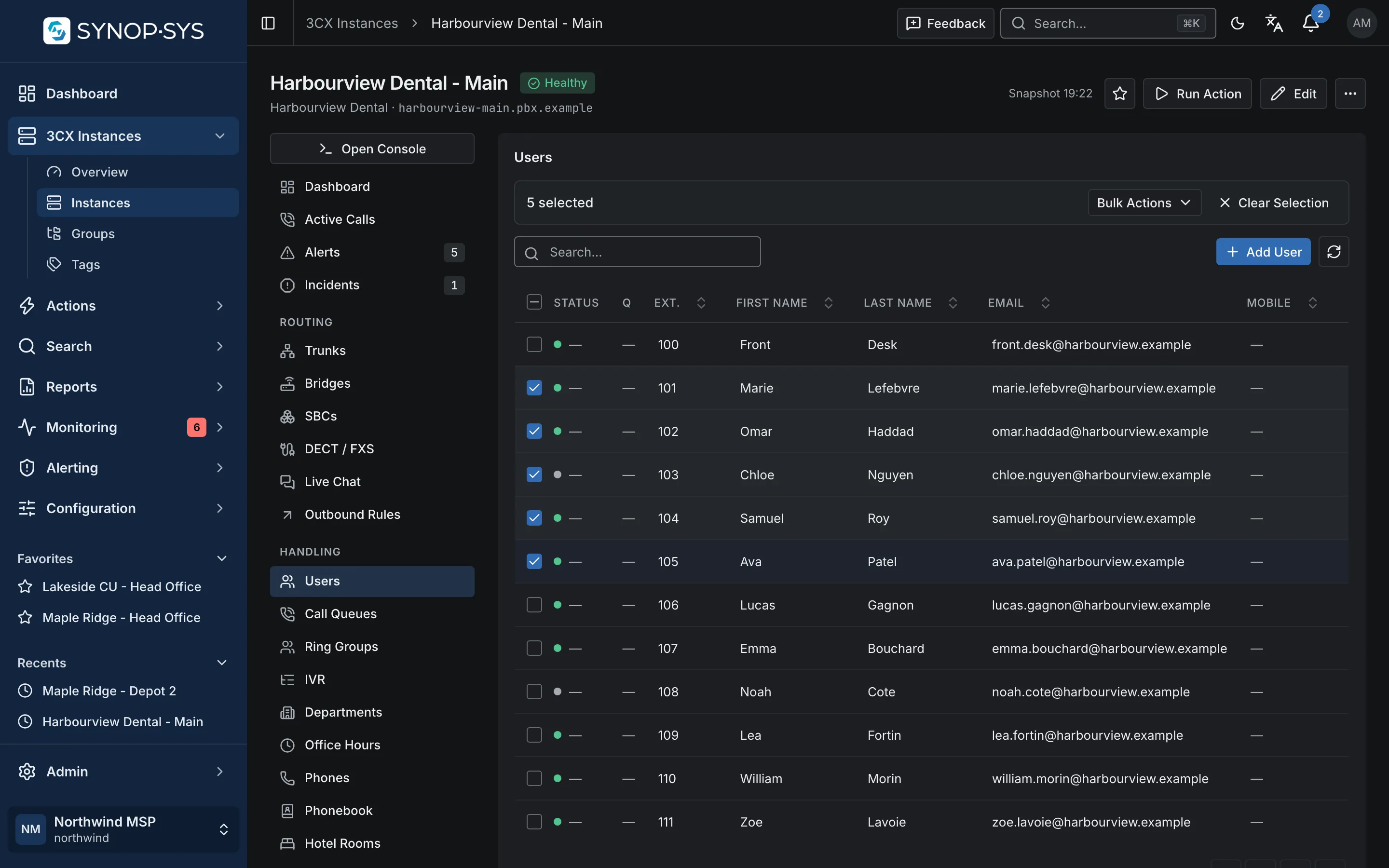
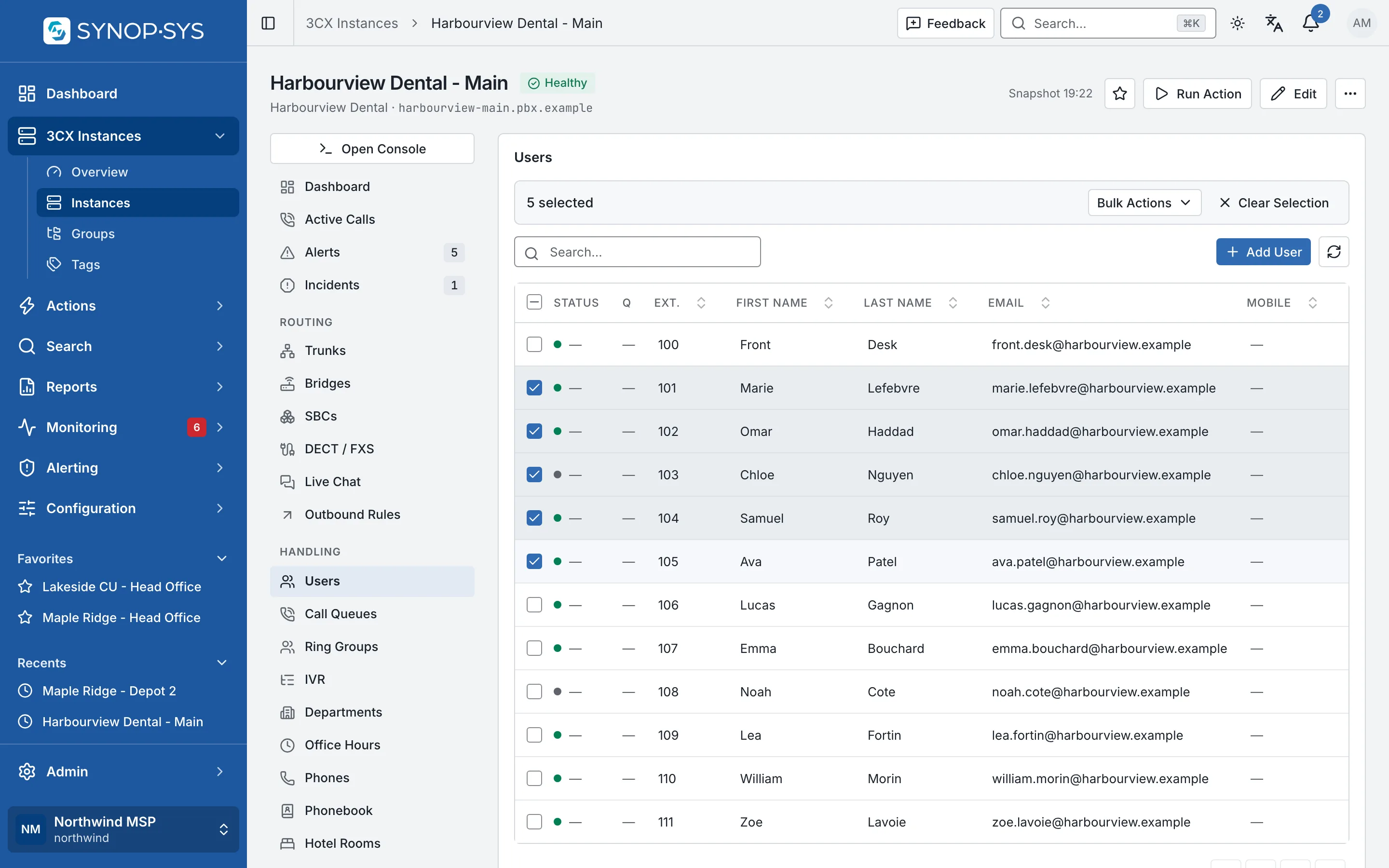
Five users selected on Harbourview Dental - Main. Five users selected on Harbourview Dental - Main.
Five users selected on Harbourview Dental - Main.Open full imageOpen full image
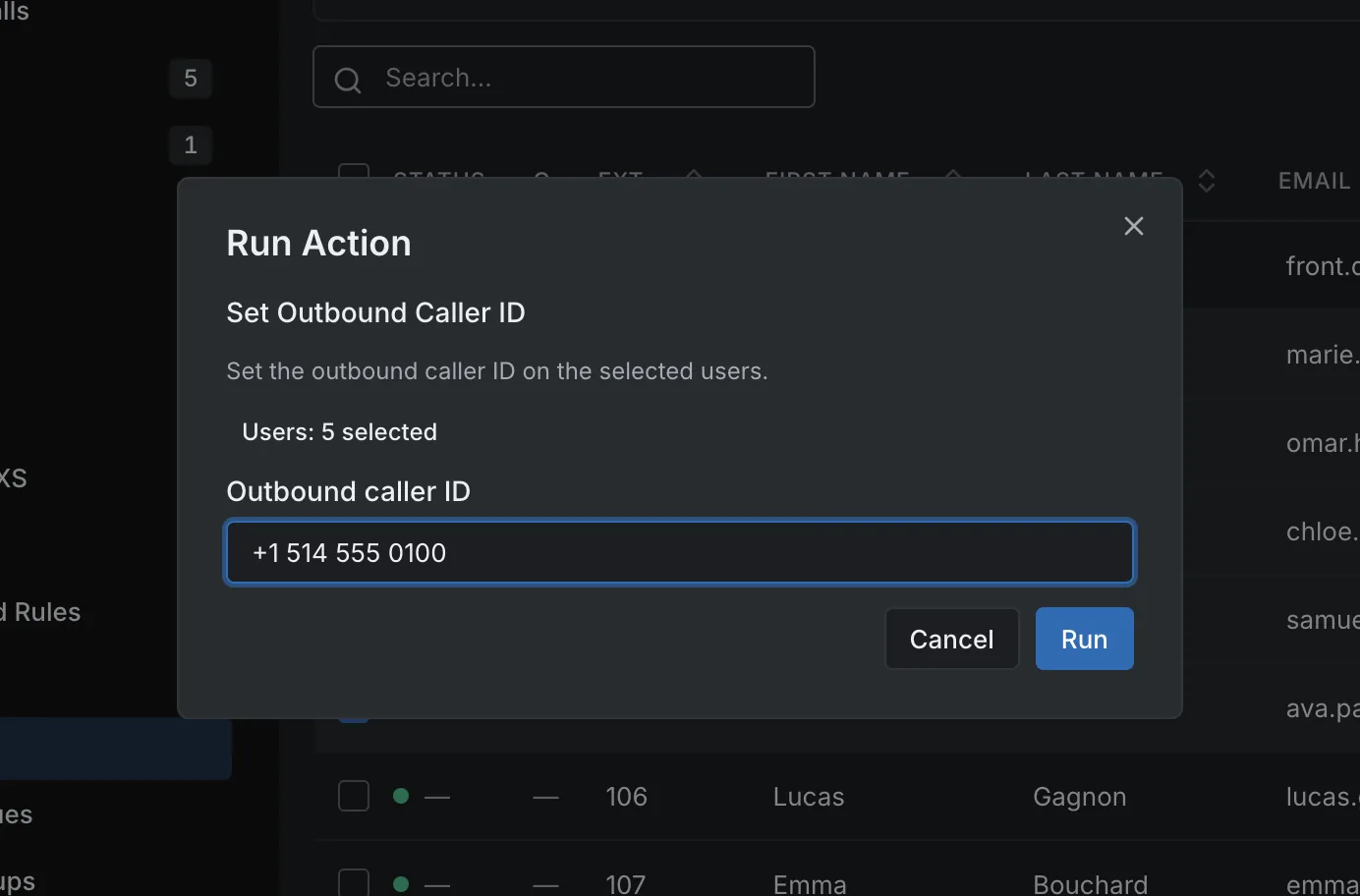
Set Outbound Caller ID for the selected users. Set Outbound Caller ID for the selected users.
Set Outbound Caller ID for the selected users.Open full imageOpen full image

Usages

See Where a User Is Referenced Before You Change It

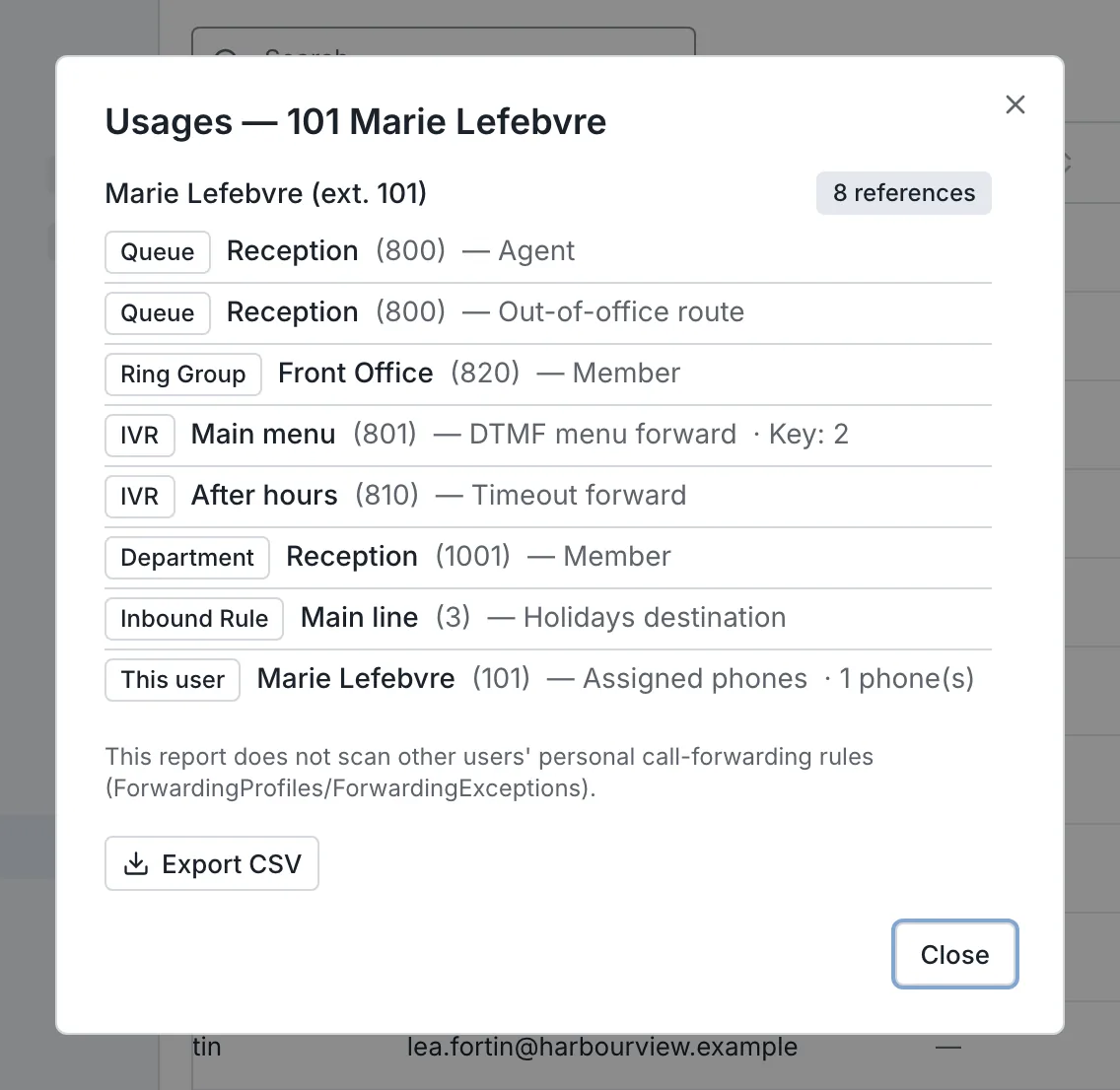
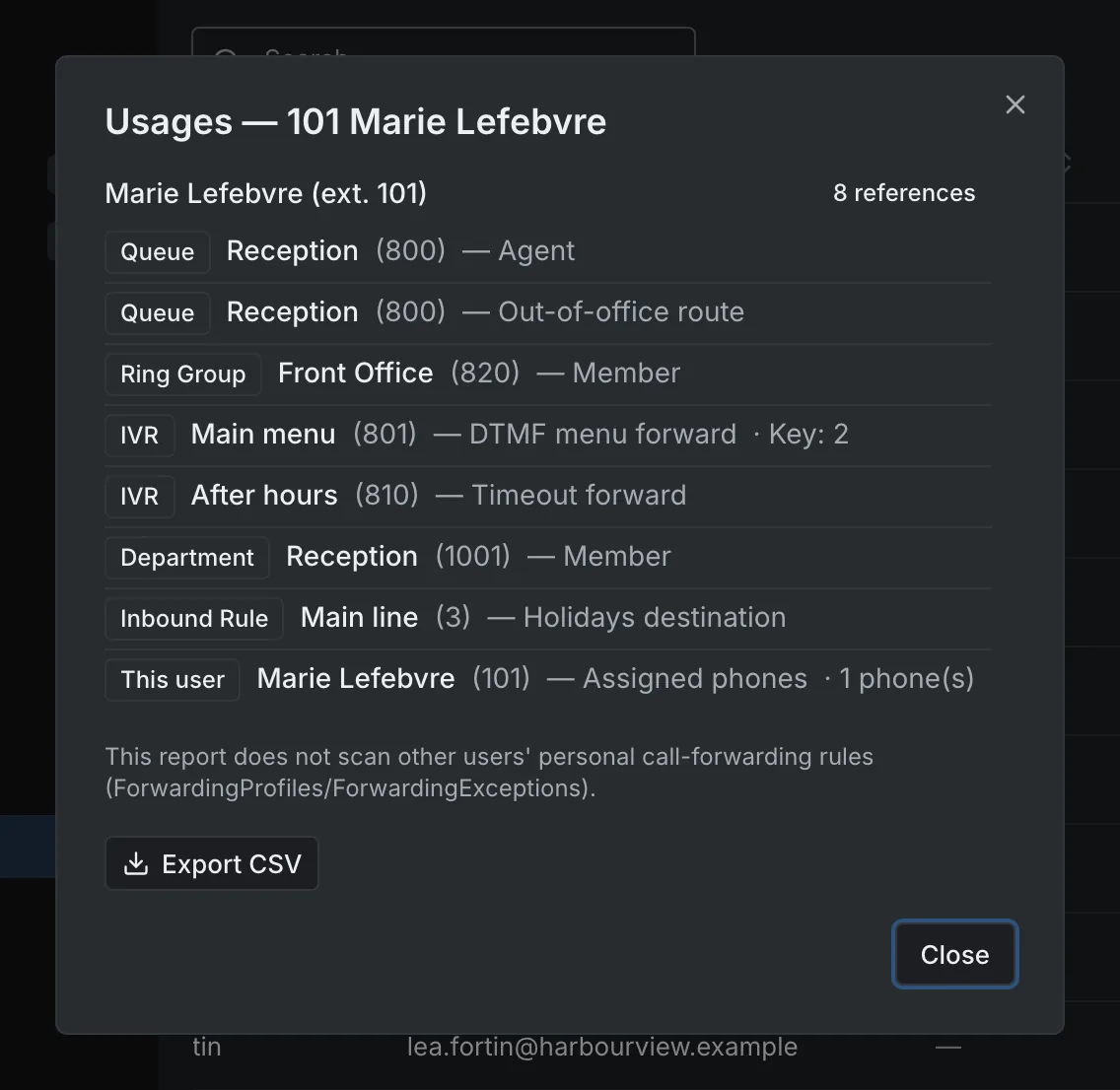
Show Usages, in a user's row menu, lists what points at that extension on the PBX: the queues where it is an agent or a manager, the ring groups and departments it belongs to, IVR menu keys and timeout or invalid-key forwards, break, holiday and out-of-office routes, inbound and outbound rules, and the phones assigned to it.

  • Read live from the PBX each time the report opens
  • Delete Users offers the same check (Check Usages) for the selected users before you confirm; it informs and never blocks the delete
  • A collection too large to read in full is reported as not fully verified, never as no references
  • Export the report as CSV
The report does not scan other users' personal call-forwarding rules.
Show Usages for 101 Marie Lefebvre: eight references, among them a queue agent seat, a ring group, an IVR menu key, a queue's out-of-office route and her assigned phone. Show Usages for 101 Marie Lefebvre: eight references, among them a queue agent seat, a ring group, an IVR menu key, a queue's out-of-office route and her assigned phone.
Show Usages for 101 Marie Lefebvre: eight references, among them a queue agent seat, a ring group, an IVR menu key, a queue's out-of-office route and her assigned phone.Open full imageOpen full image

Phones

Edit Phone Options Across Selected Handsets

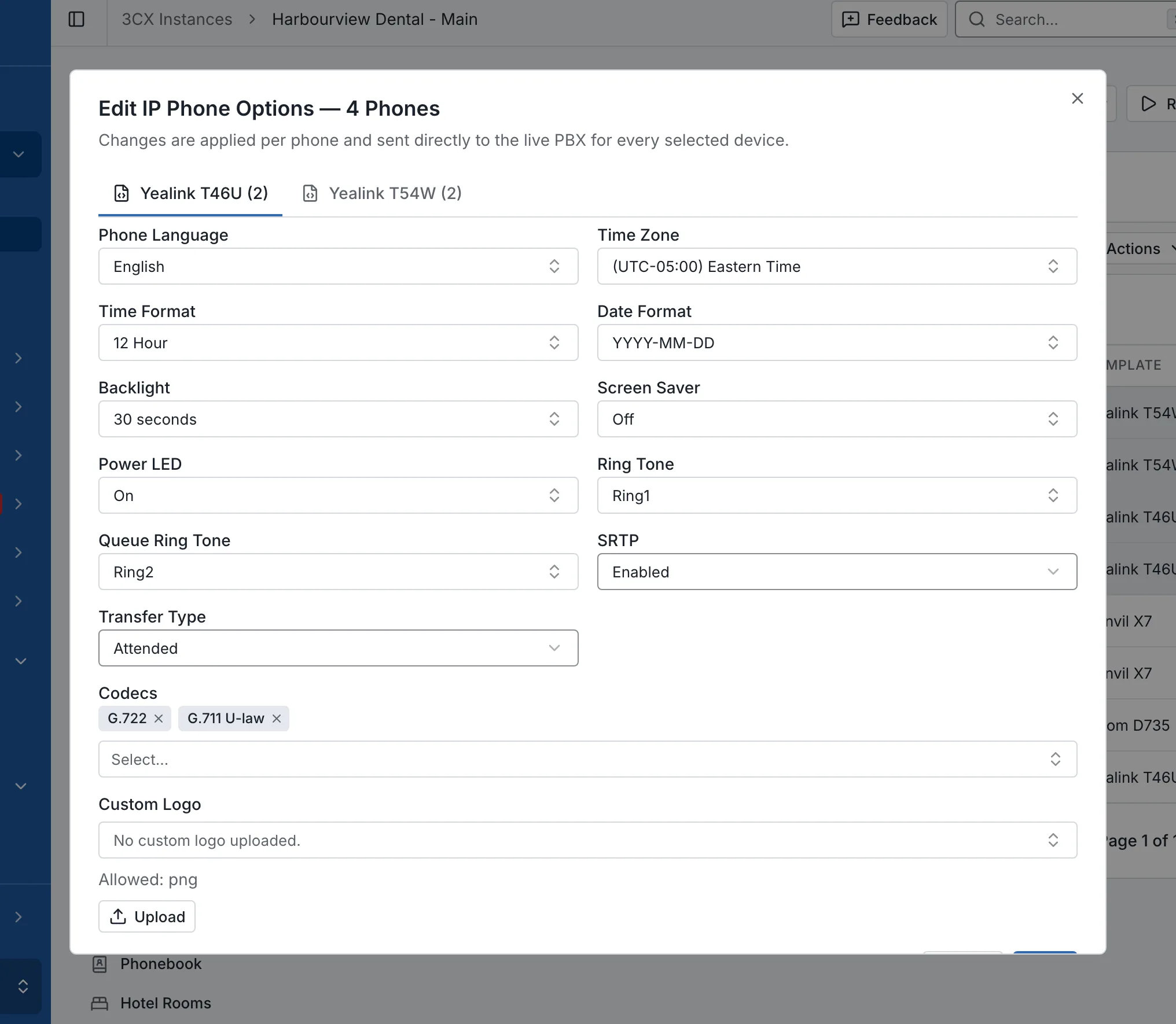
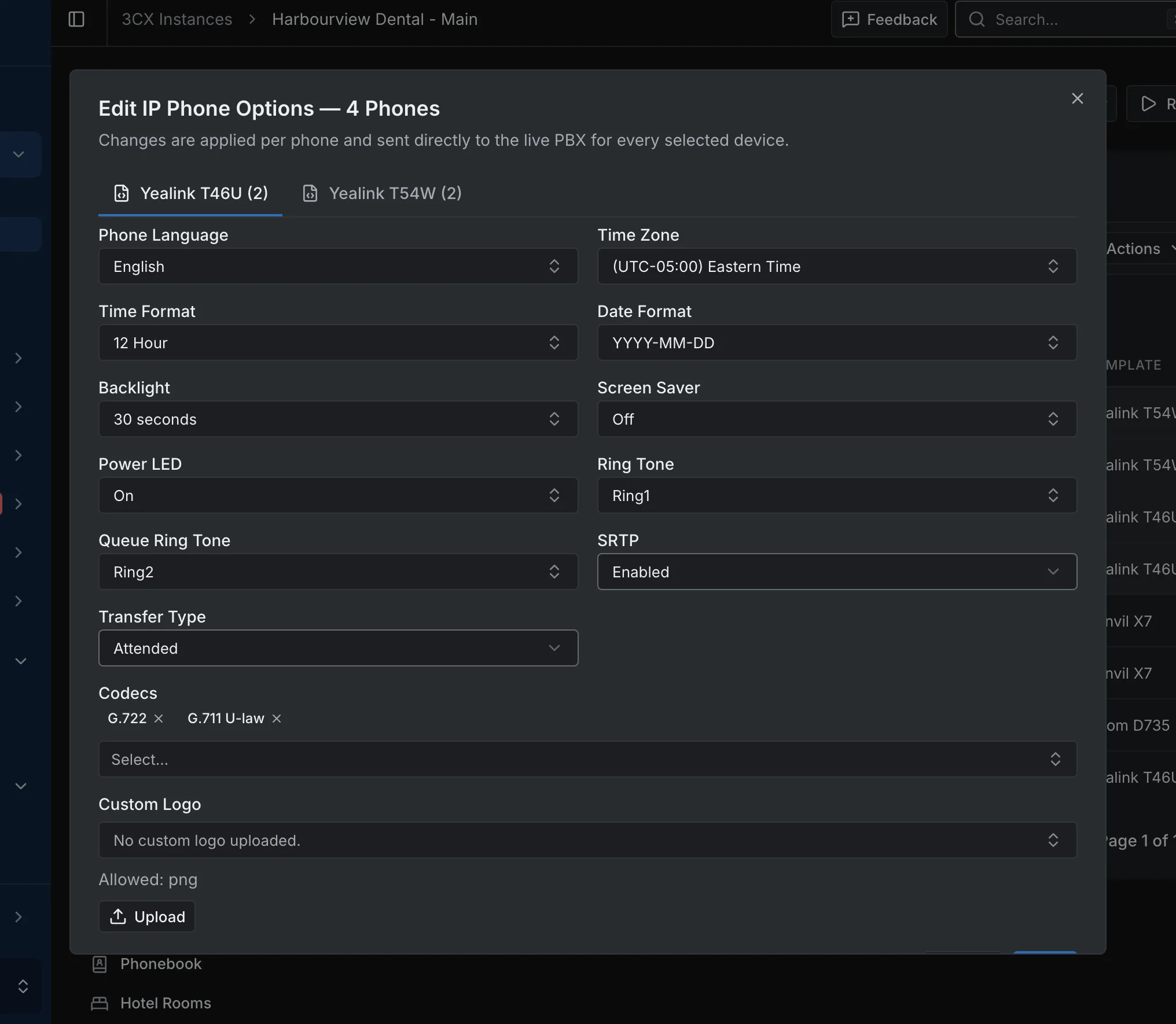
Select provisioned phones and open Edit IP Phone Options. Options are grouped by the phones’ templates, and results are reported per phone when some updates fail.

  • One tab per phone template among the selected phones
  • Language, time zone, backlight, ring tones, codecs, SRTP and more
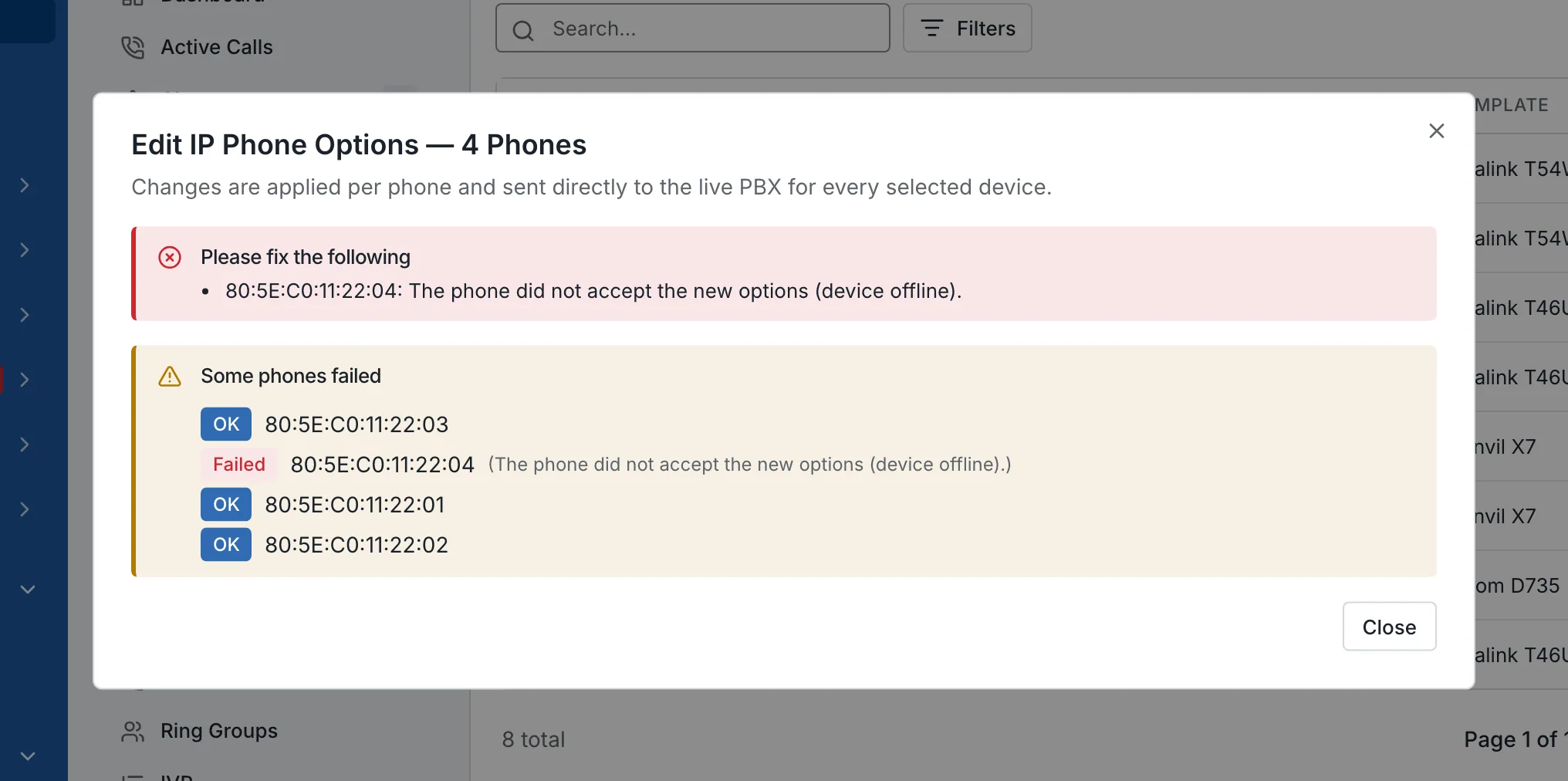
  • A phone that refuses the update is listed with its reason; the others keep their new options
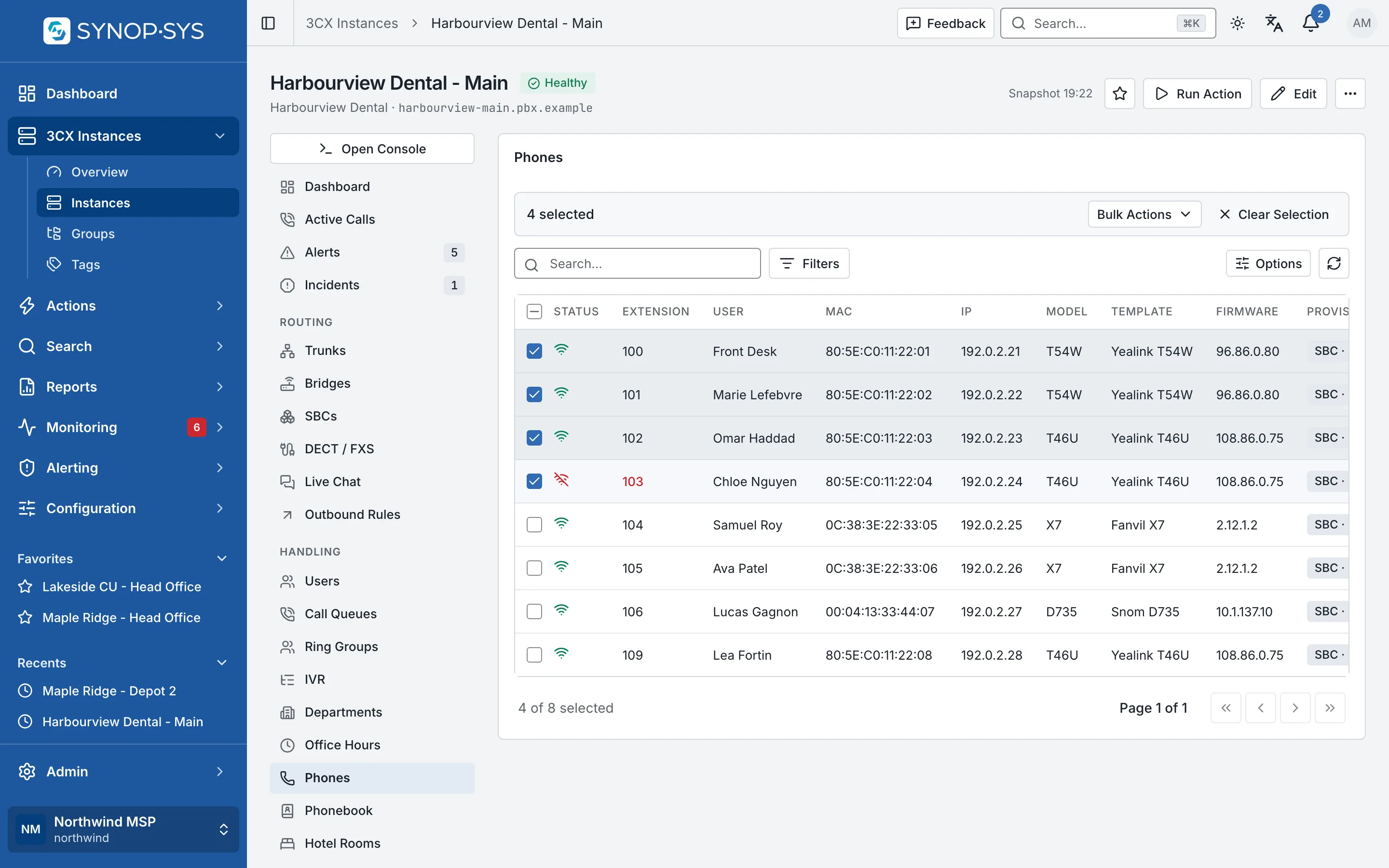
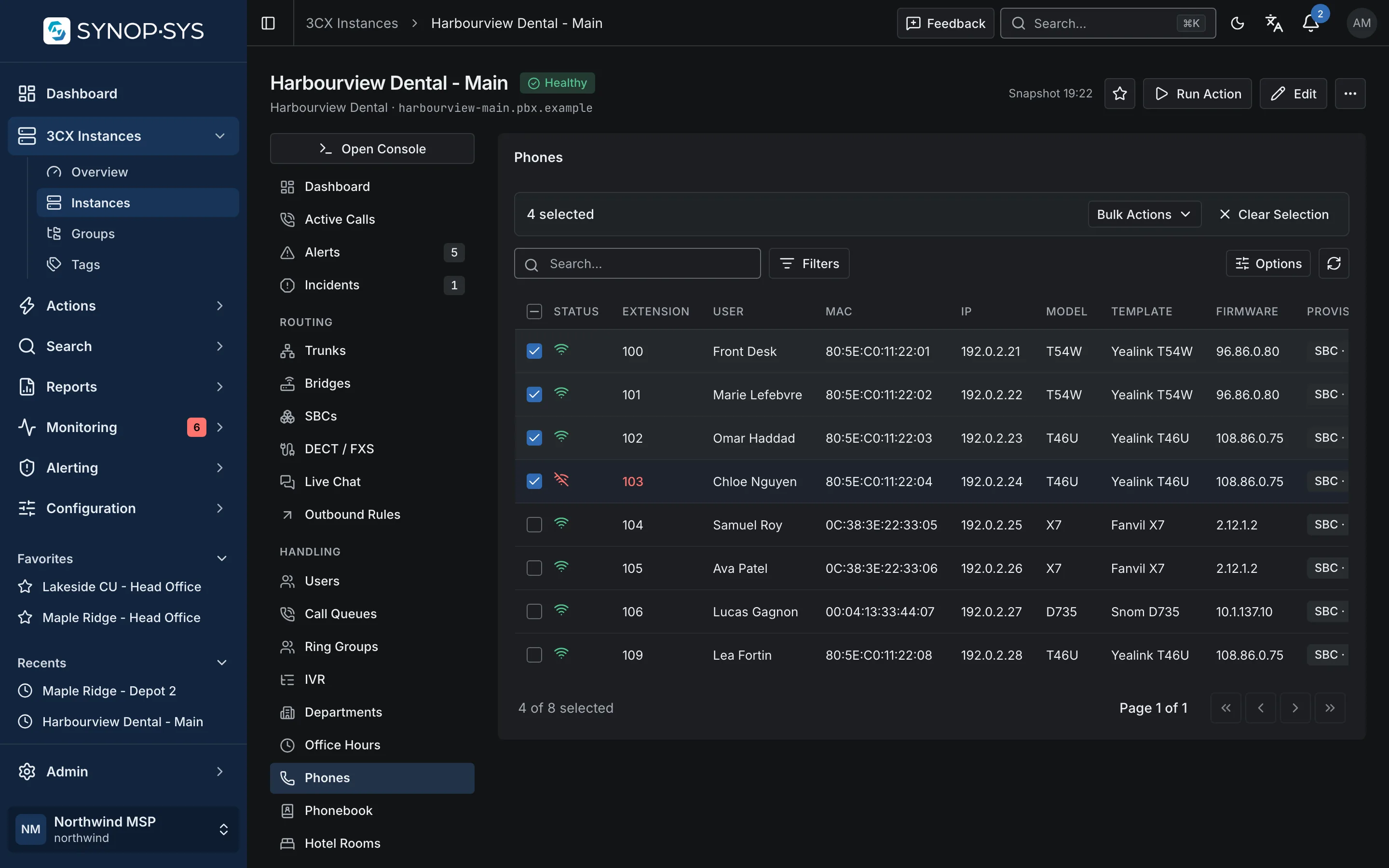
Four phones selected on one PBX: two Yealink T54W and two Yealink T46U. Four phones selected on one PBX: two Yealink T54W and two Yealink T46U.
Four phones selected on one PBX: two Yealink T54W and two Yealink T46U.Open full imageOpen full image
Edit IP Phone Options for the four phones, grouped by template. Edit IP Phone Options for the four phones, grouped by template.
Edit IP Phone Options for the four phones, grouped by template.Open full imageOpen full image

Results Are Reported per Phone

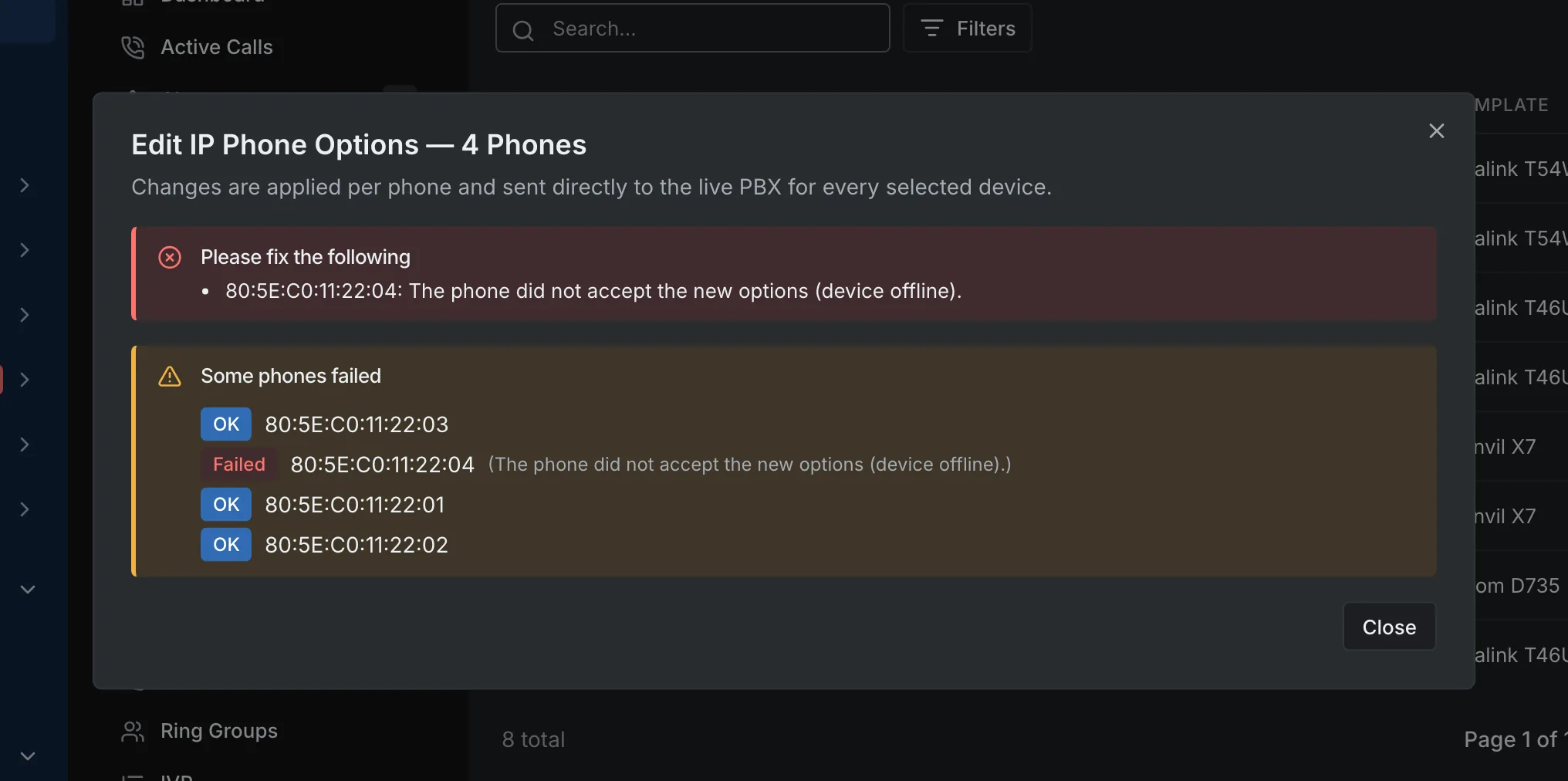
When a handset refuses the update, it is listed with its reason and the other phones keep their new options. Nothing is rolled back behind your back, and nothing is reported as done that was not.

Per-phone outcome after applying: three updated, one refused (device offline). Per-phone outcome after applying: three updated, one refused (device offline).
Per-phone outcome after applying: three updated, one refused (device offline).Open full imageOpen full image

Put Recurring Work on a Schedule

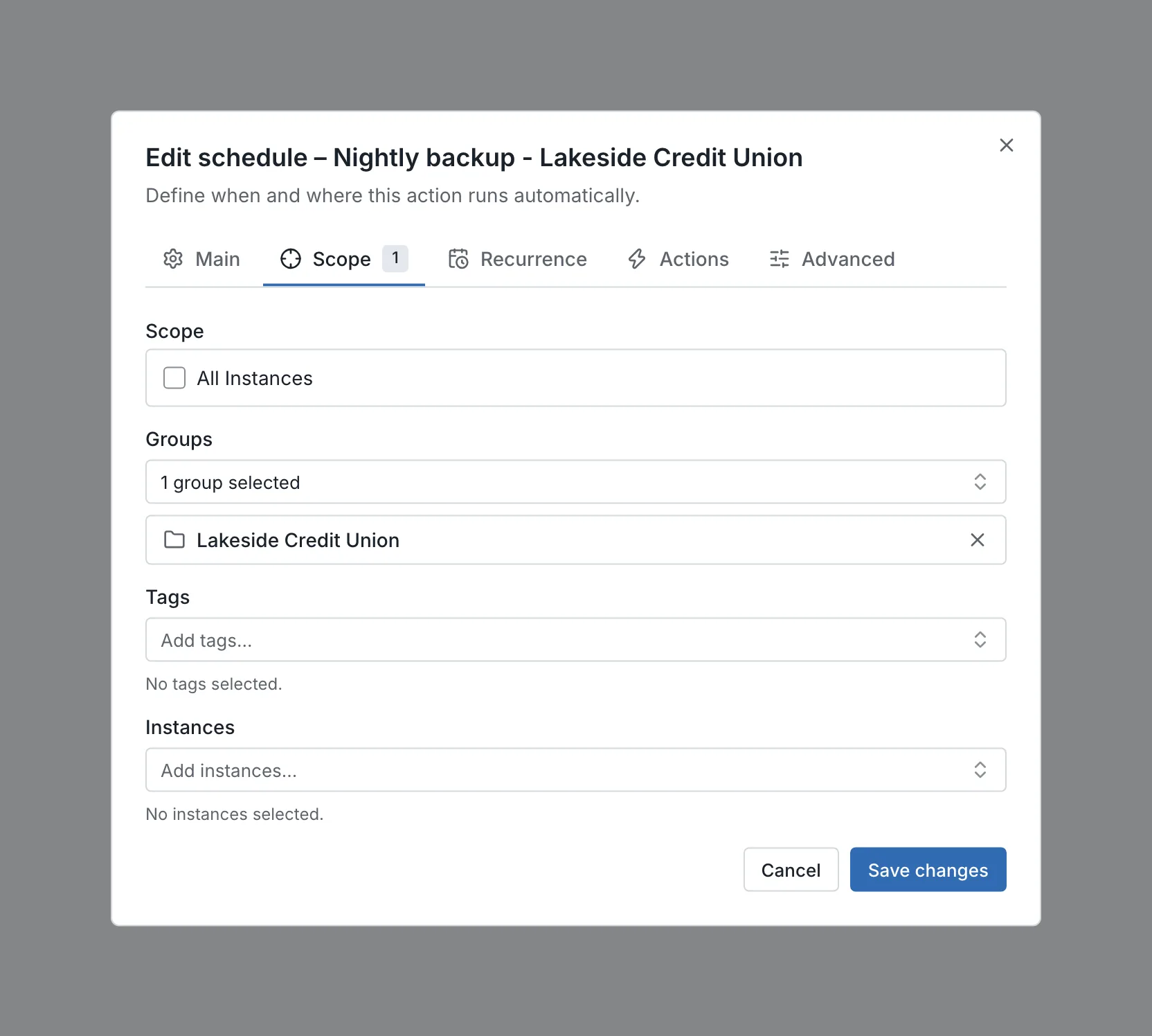
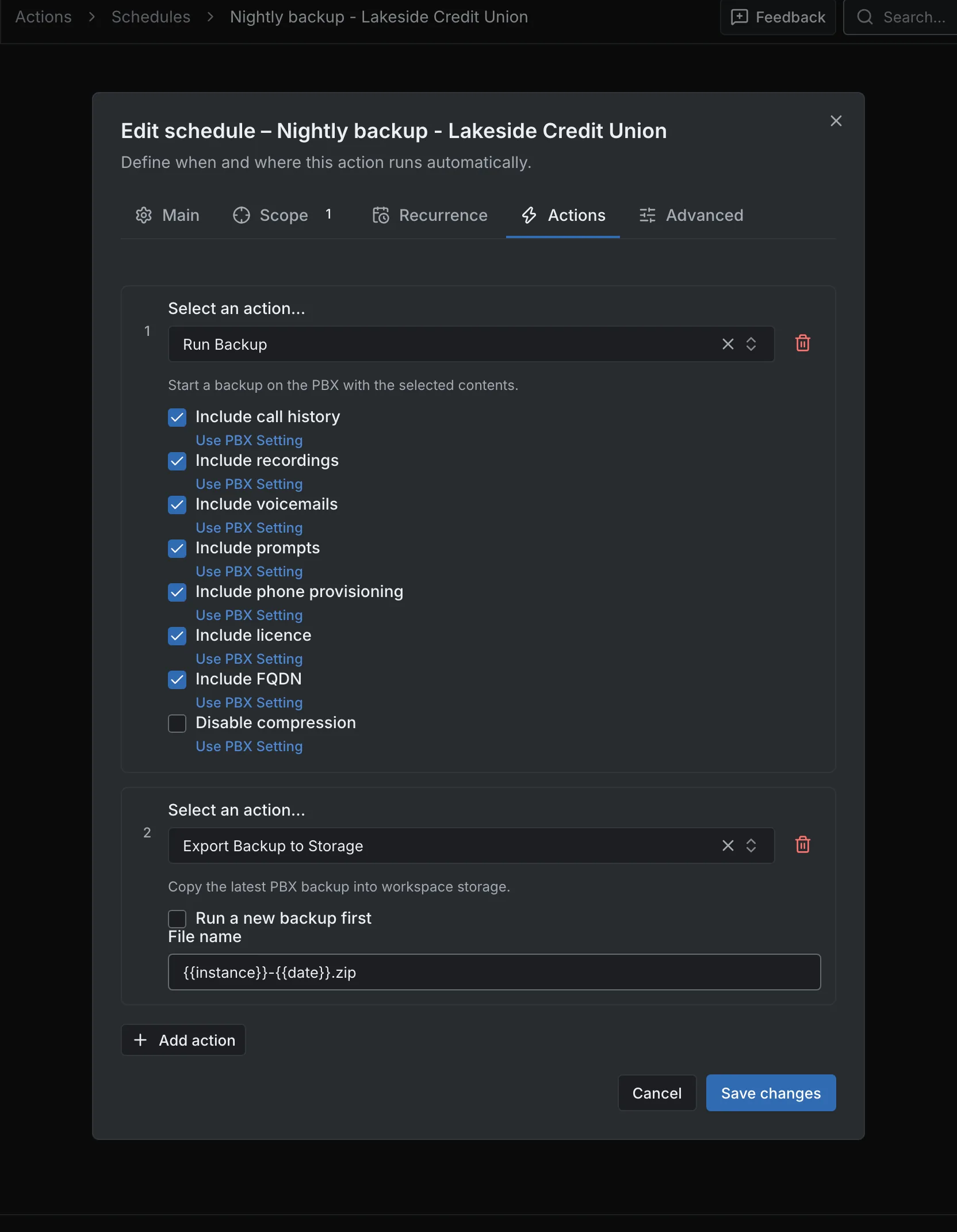
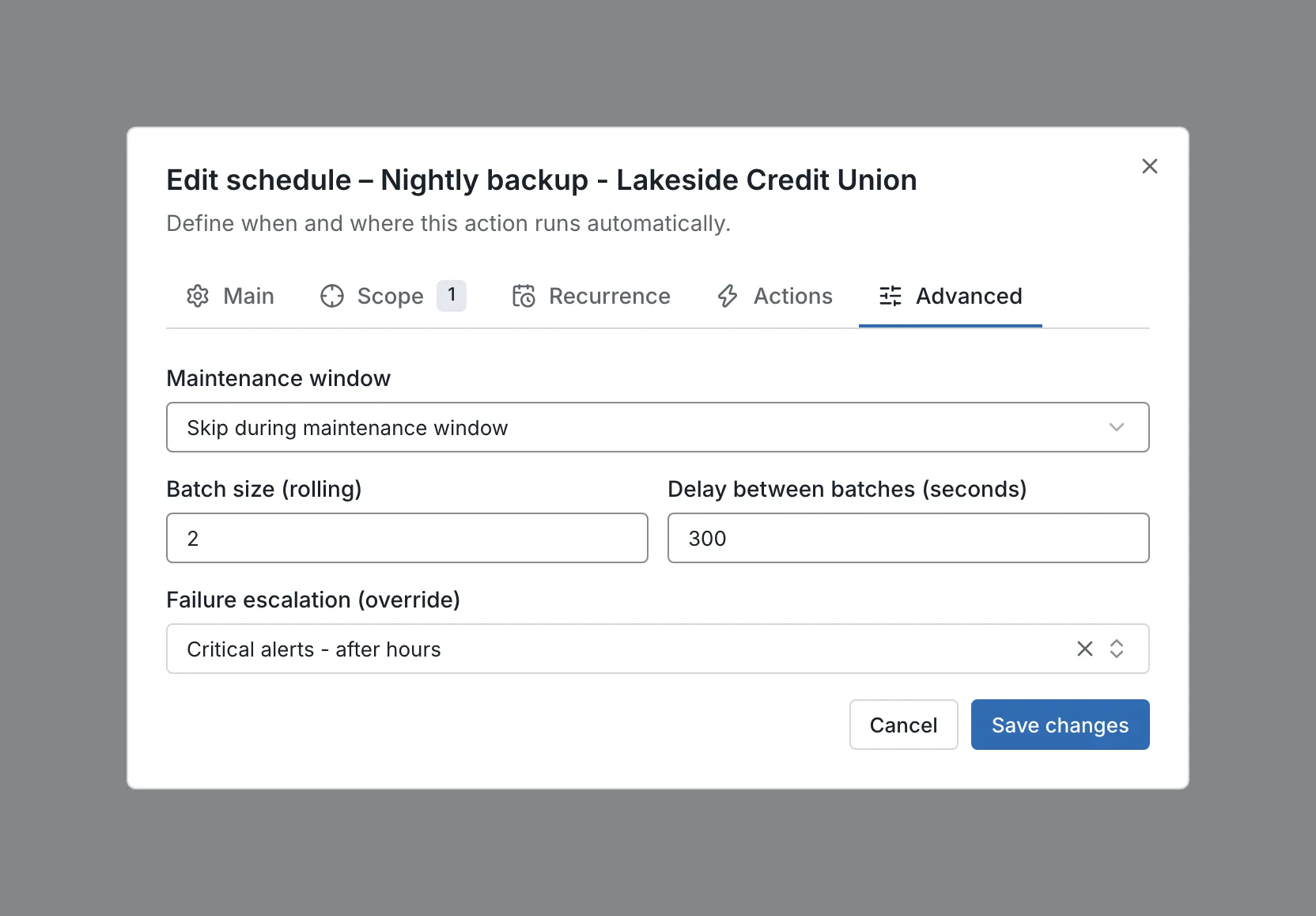
Choose the targets, recurrence and time zone, then add actions in the order they should run. Control rolling batches and maintenance-window behaviour, and review the schedule’s run history.

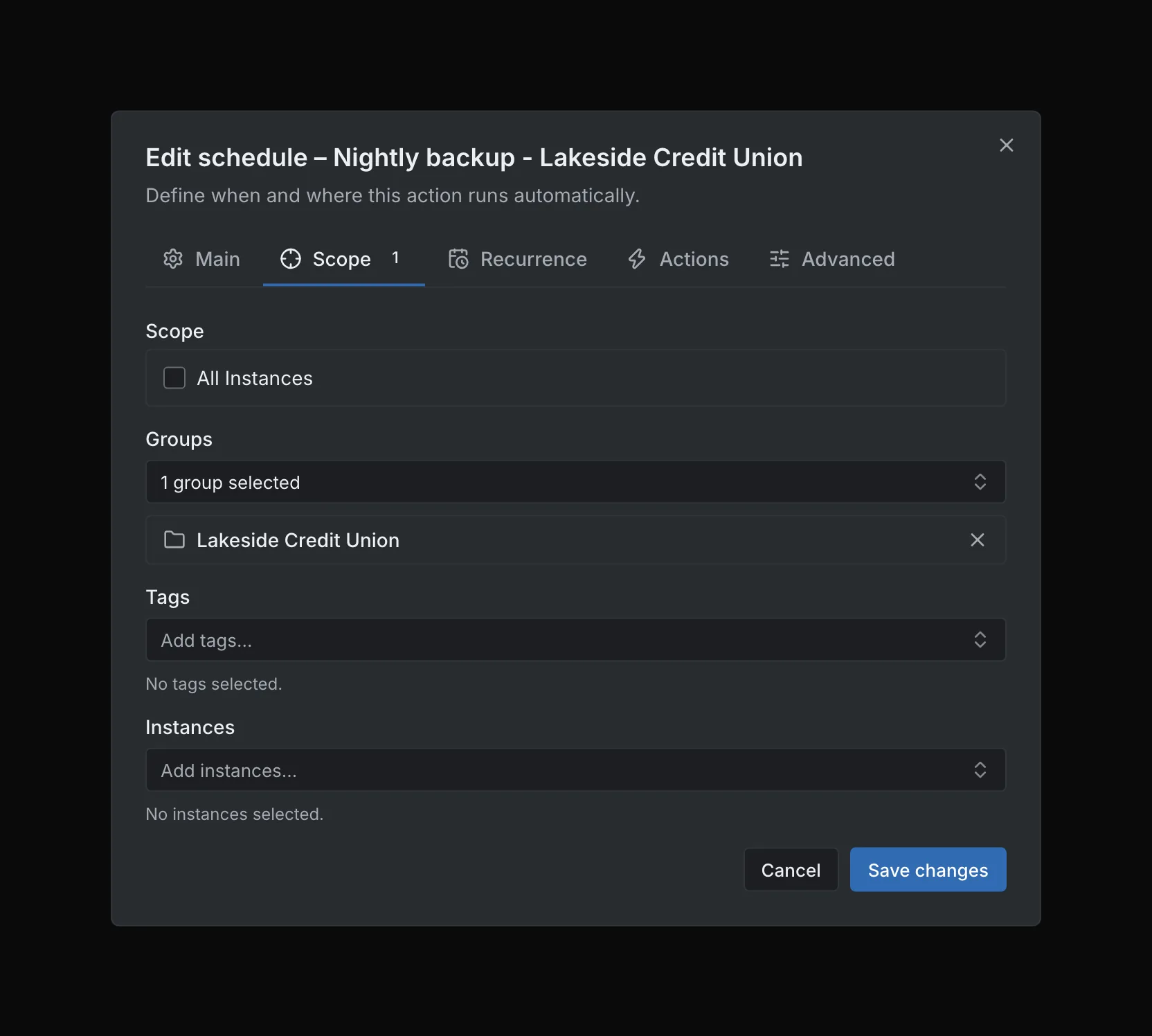
Scope: the Lakeside Credit Union group, which currently resolves to five PBXs. Scope: the Lakeside Credit Union group, which currently resolves to five PBXs.
Scope: the Lakeside Credit Union group, which currently resolves to five PBXs.Open full imageOpen full image
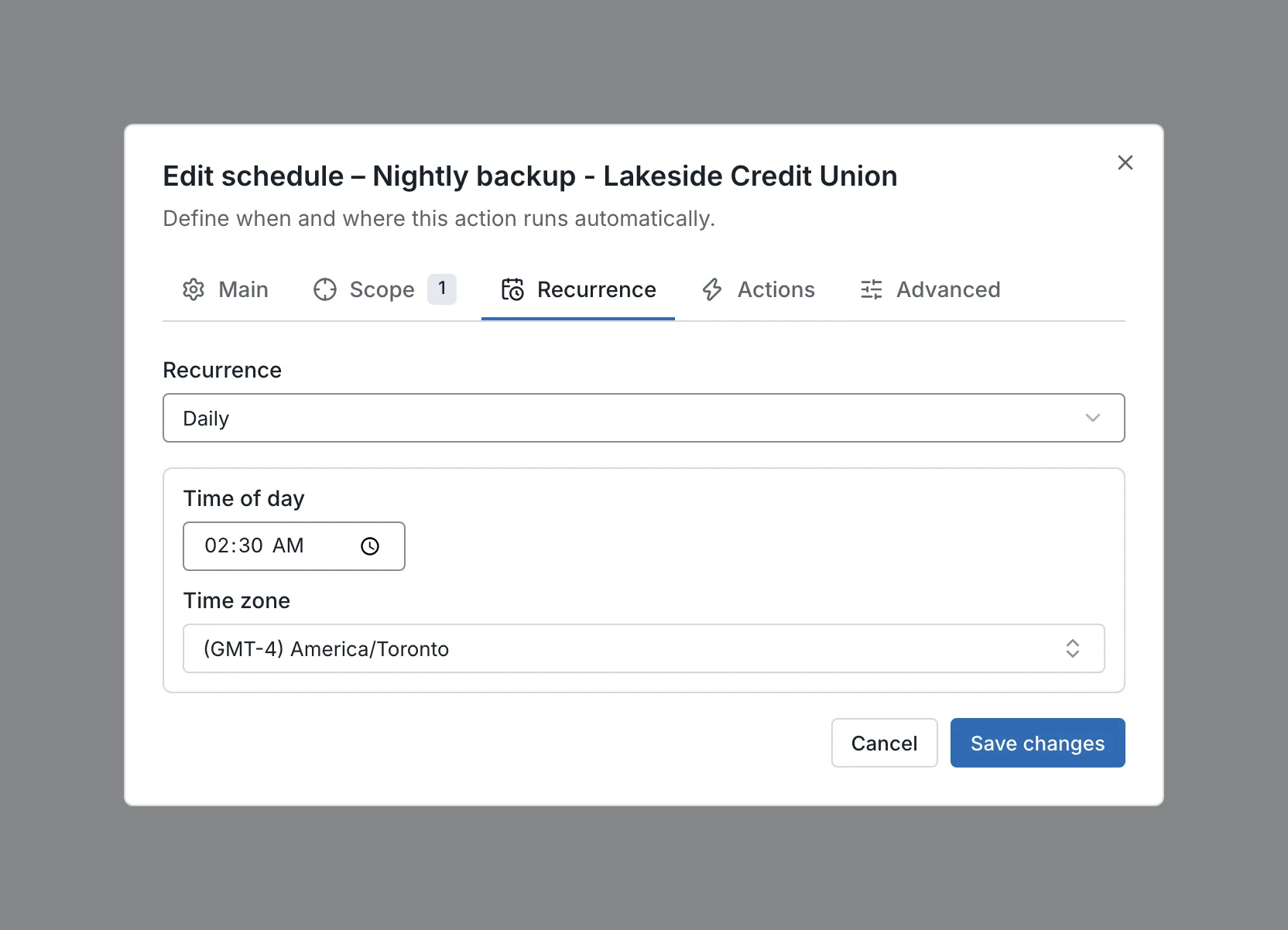
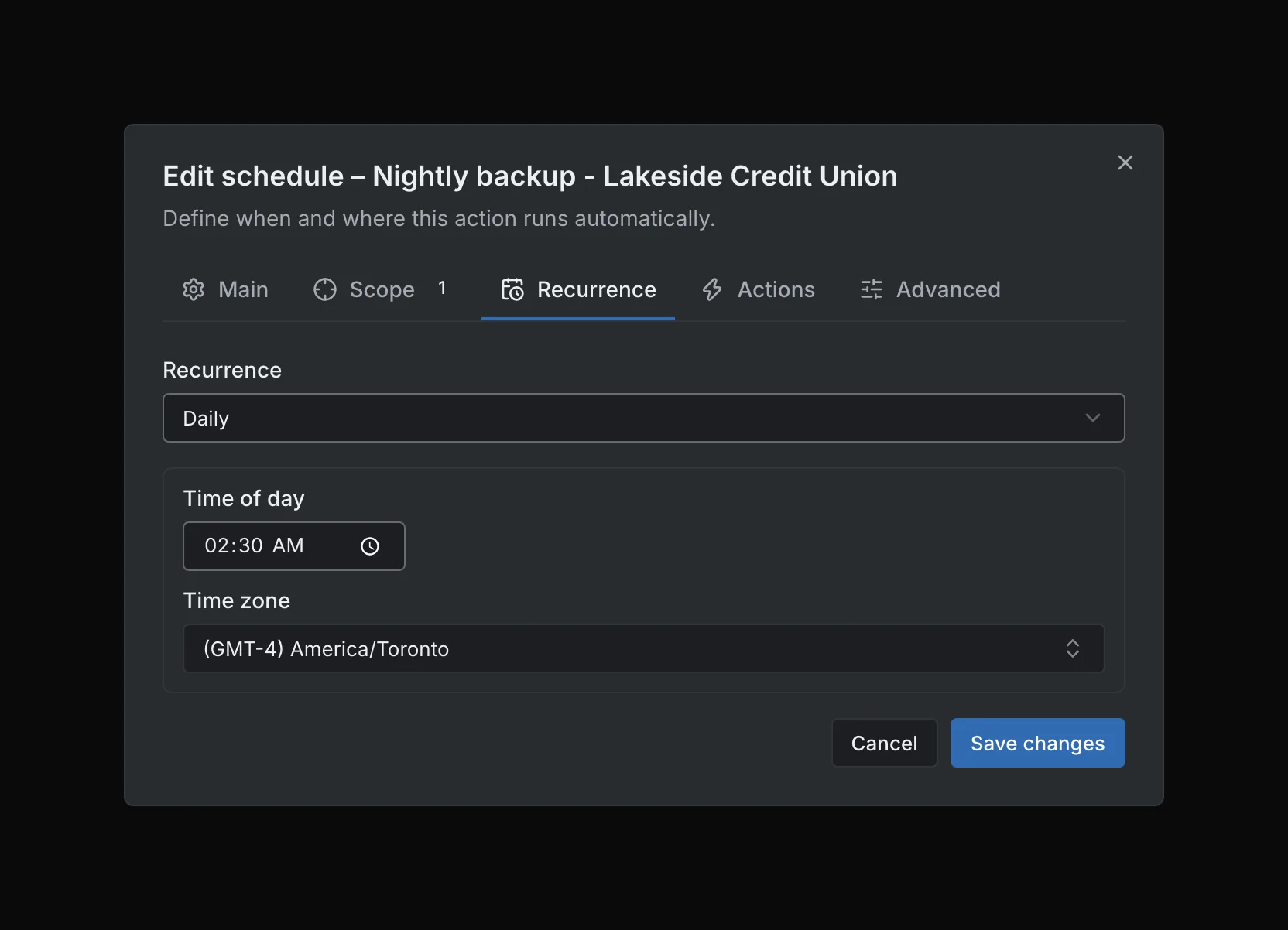
Recurrence: daily at 02:30 in America/Toronto. Recurrence: daily at 02:30 in America/Toronto.
Recurrence: daily at 02:30 in America/Toronto.Open full imageOpen full image
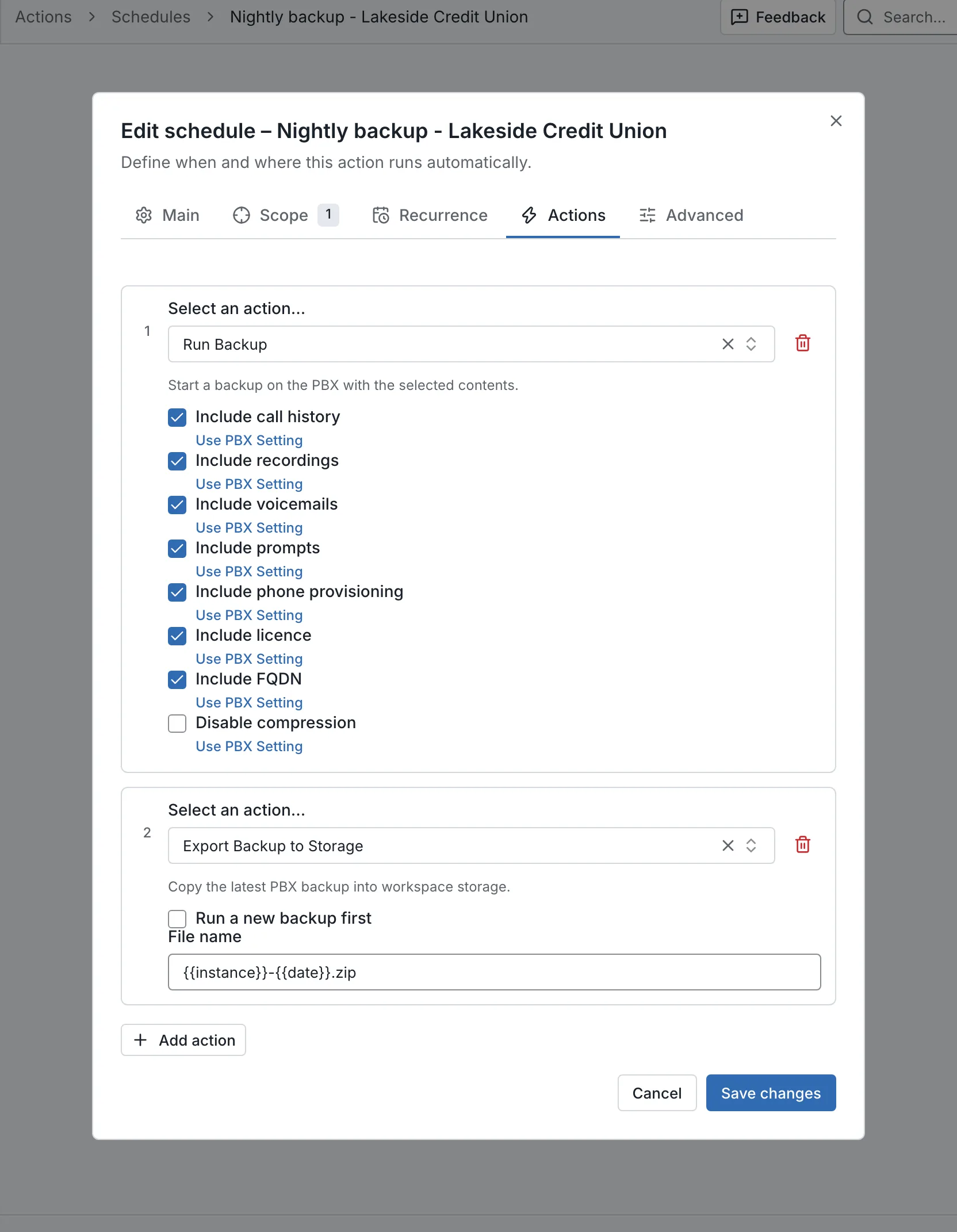
Actions in order: Run Backup, then Export Backup to Storage. Actions in order: Run Backup, then Export Backup to Storage.
Actions in order: Run Backup, then Export Backup to Storage.Open full imageOpen full image
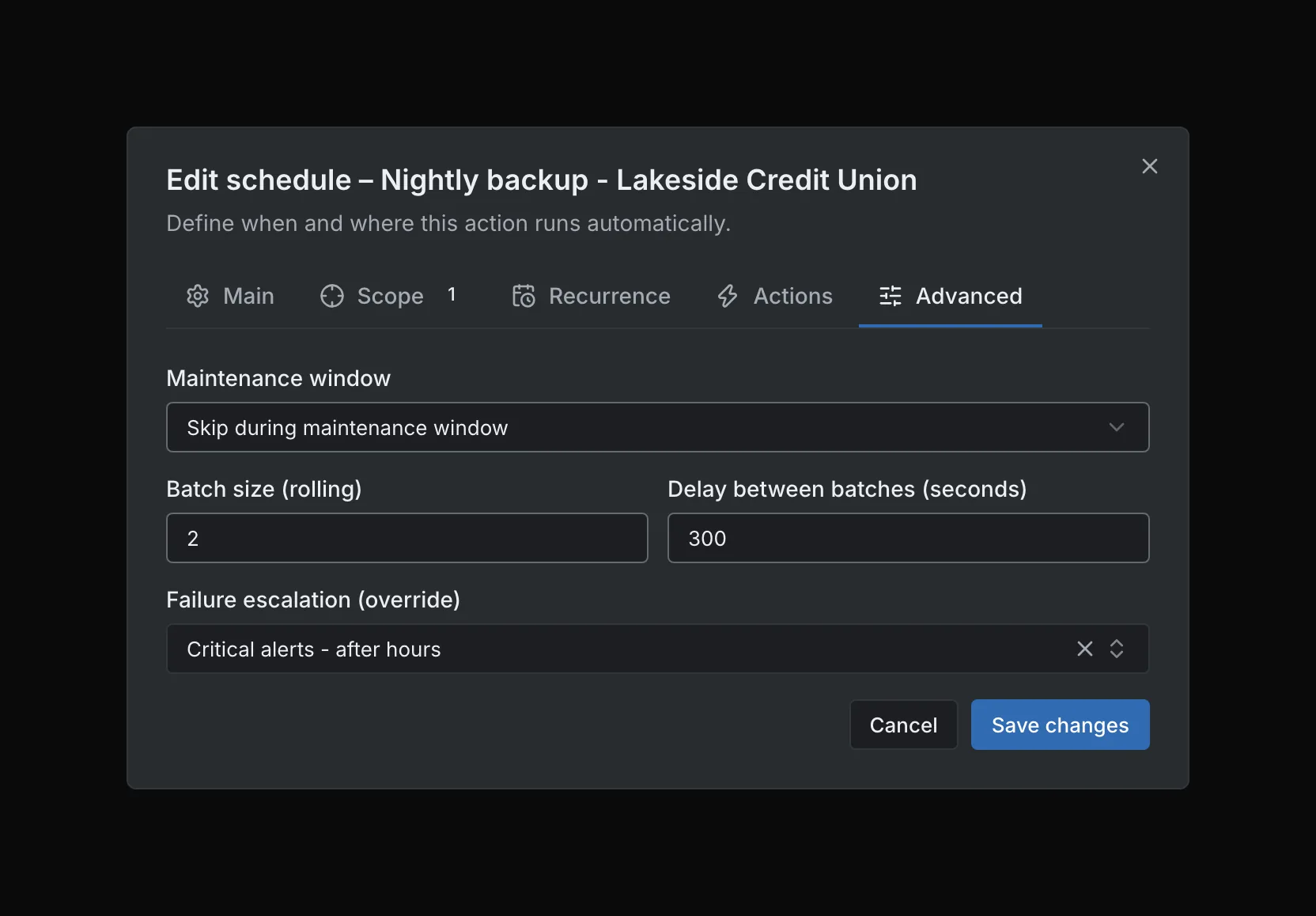
Advanced: batches of two with a five-minute delay; skip the run while a maintenance window is open. Advanced: batches of two with a five-minute delay; skip the run while a maintenance window is open.
Advanced: batches of two with a five-minute delay; skip the run while a maintenance window is open.Open full imageOpen full image

See a Scheduled Run

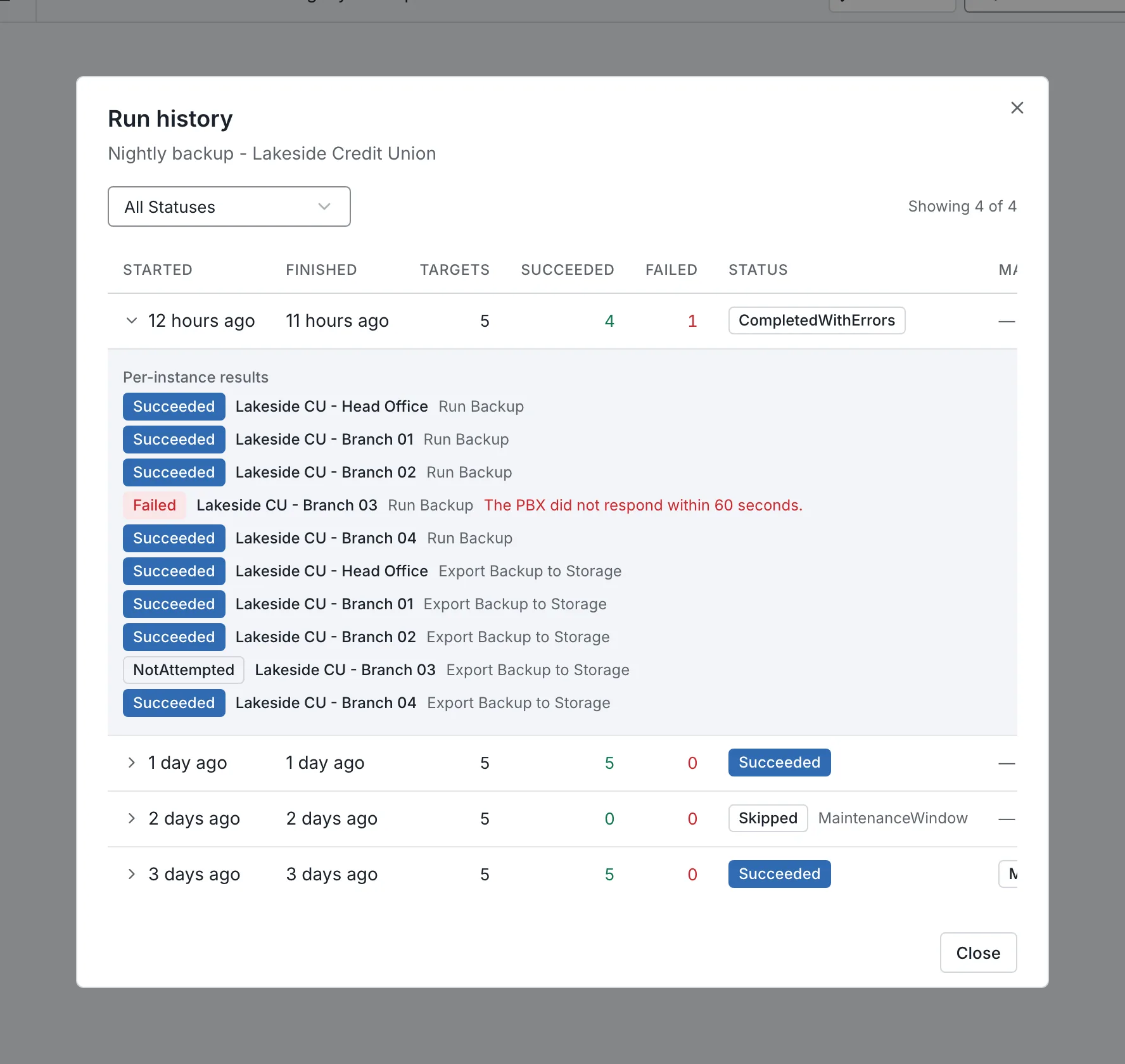
Each run records its stages and targets. Within a stage, one failing target does not stop the others; a stage that does not fully succeed stops the stages after it. Skipped runs keep their reason.

Recurrence offers hourly, daily, monthly and yearly. There is no weekly or cron expression, and no native one-off schedule.
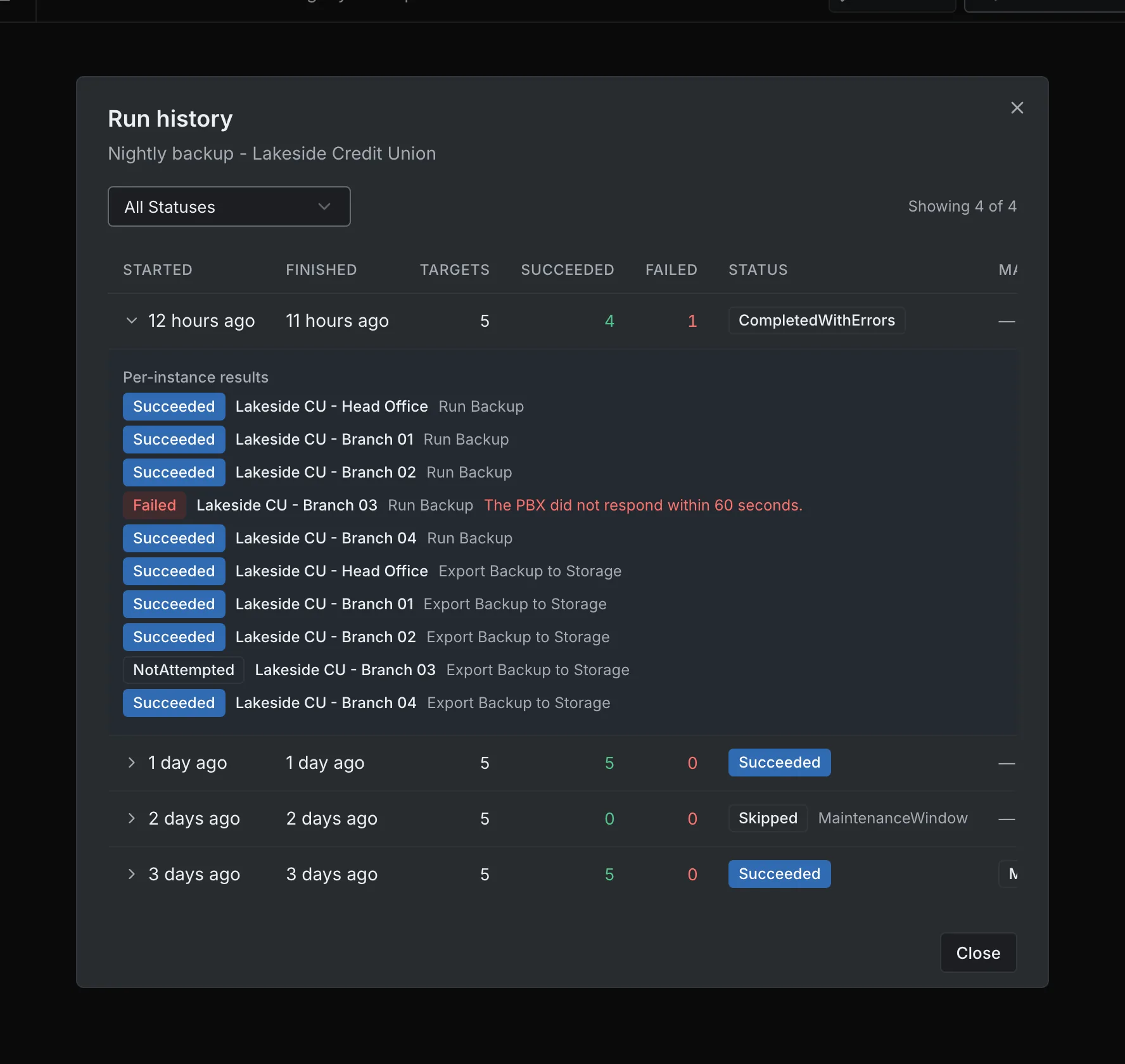
Run history: the latest run completed with one failed target; an earlier run was skipped by a maintenance window. Run history: the latest run completed with one failed target; an earlier run was skipped by a maintenance window.
Run history: the latest run completed with one failed target; an earlier run was skipped by a maintenance window.Open full imageOpen full image

Backups and updates

Bring Backups and Updates Into the Same Workflow

Run backups, export backup files to workspace storage and configure the backup or update settings SYNOP•SYS supports. Schedule those operations and inspect their results; backup exports count against the workspace’s storage allowance.

  • Run Backup and Export Backup to Storage as actions, bulk actions or schedule stages
  • Exports land in the workspace bucket with download and delete controls
  • No automatic nightly export unless you schedule one

Compare plans and storage

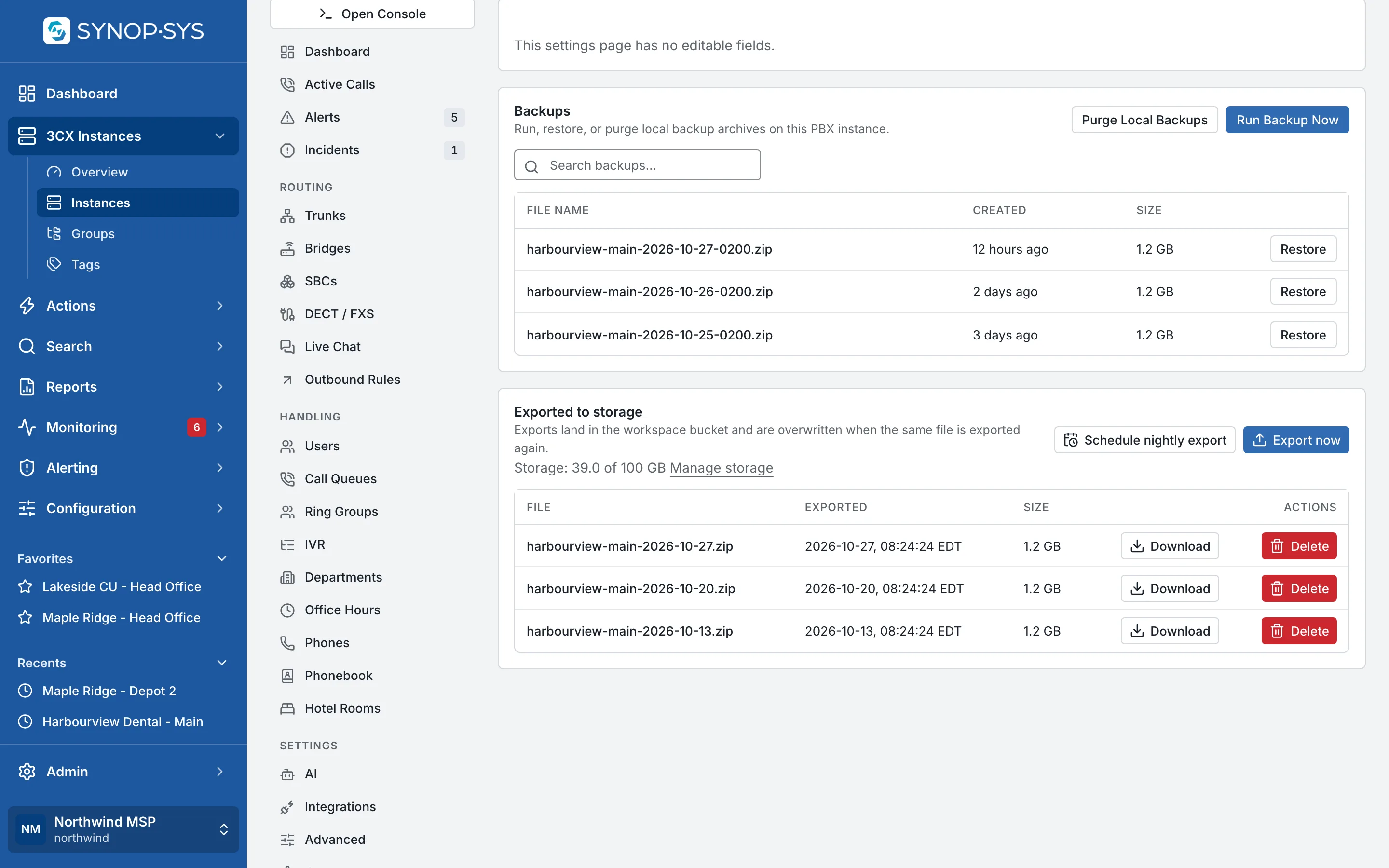
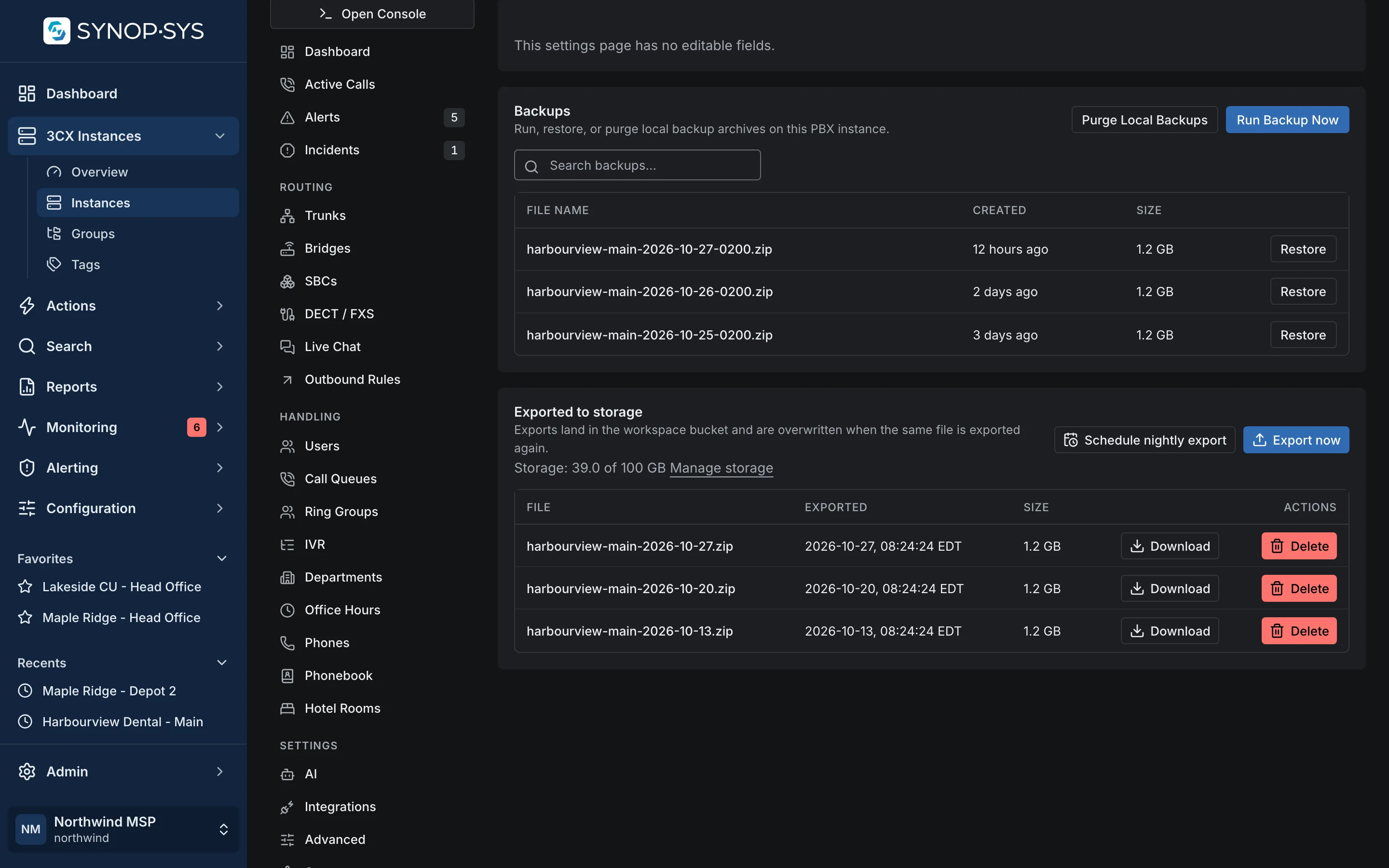
PBX backup archives and the copies exported to workspace storage for one instance. PBX backup archives and the copies exported to workspace storage for one instance.
PBX backup archives and the copies exported to workspace storage for one instance.Open full imageOpen full image

Which Change Do You Repeat Most?

Tell us in your request; it is usually the first thing we help set up.