Platform overview

Follow the Work From Fleet View to Finished Change

Start with the systems you manage, investigate the condition that needs attention and take a supported action. SYNOP•SYS connects inventory, monitoring, configuration and execution in one workspace.

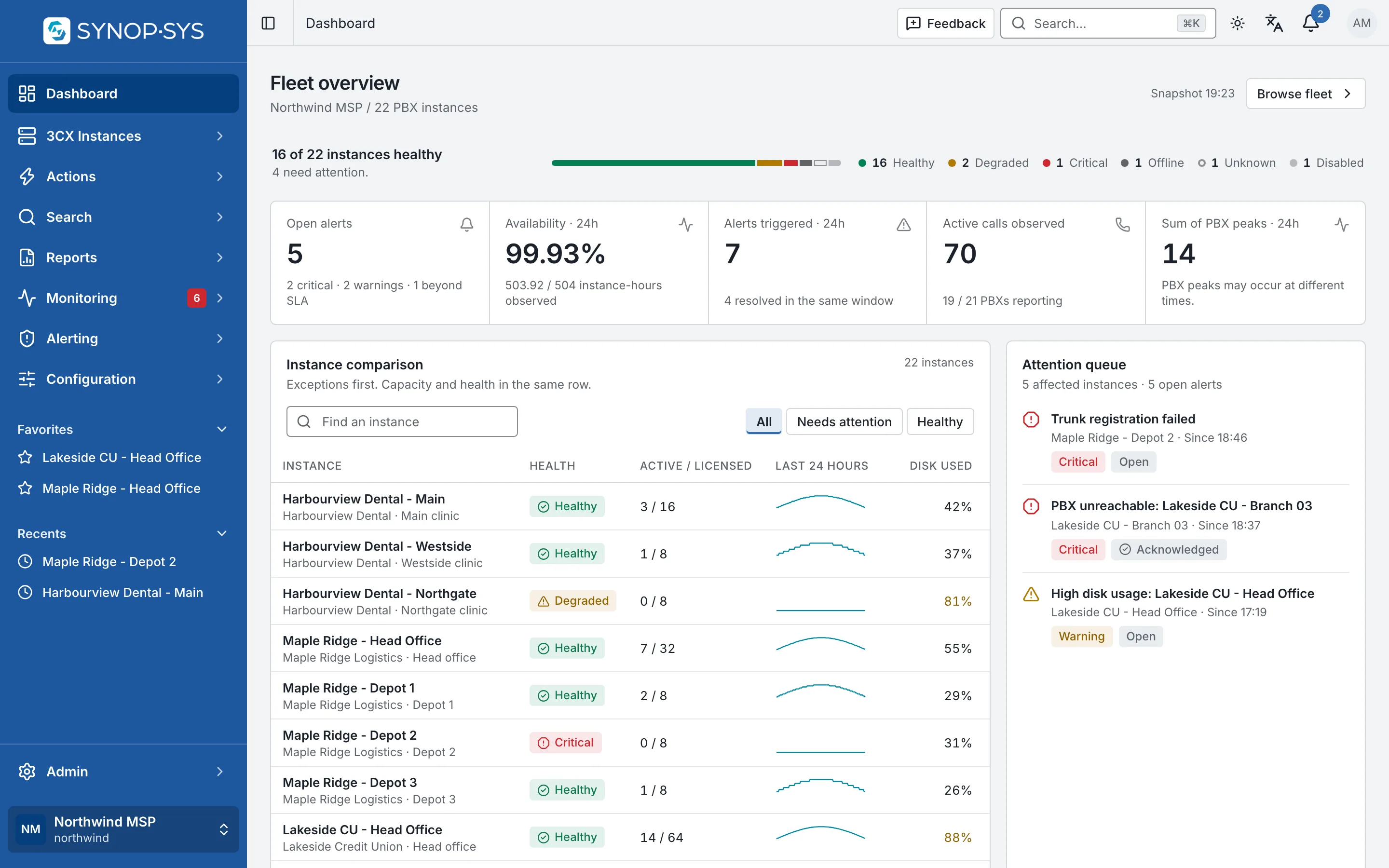
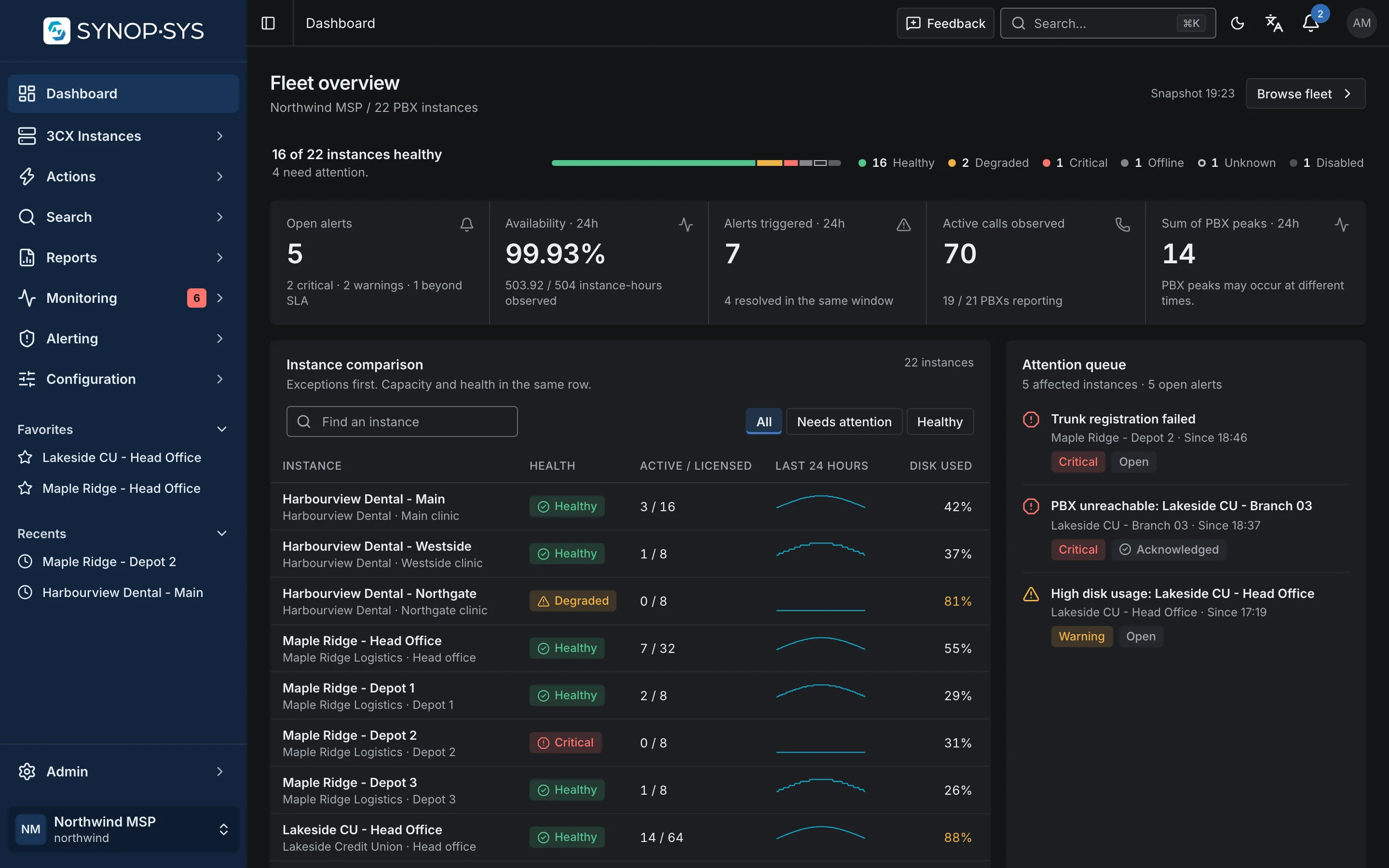
The fleet overview: health per instance, open alerts and the attention queue. The fleet overview: health per instance, open alerts and the attention queue.
The fleet overview: health per instance, open alerts and the attention queue.Open full imageOpen full image

Inventory

Know Which Systems Need Attention

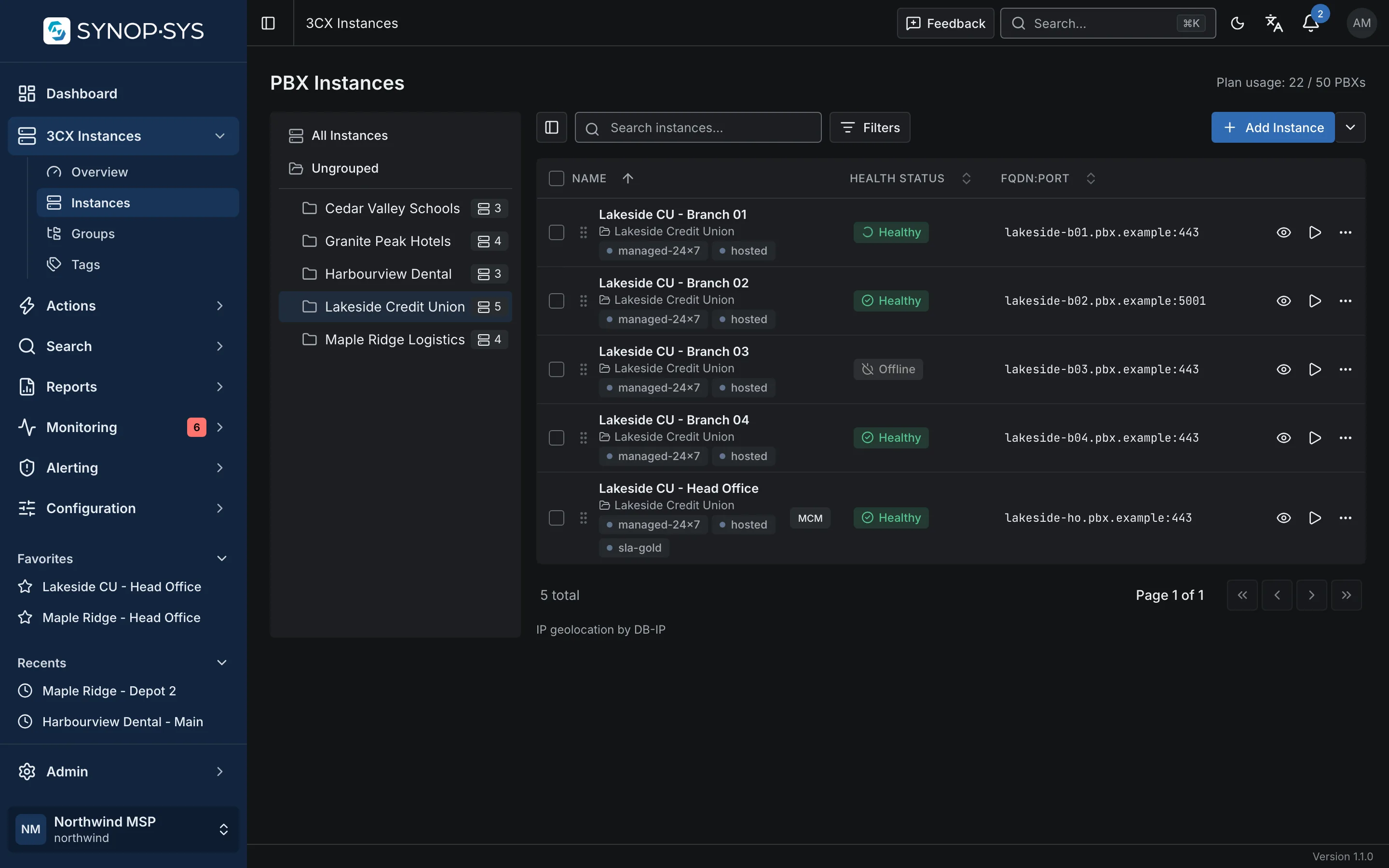
Review PBX health, version and licence information alongside your groups and tags. Open an instance to inspect its dashboard, users, phones, trunks and the other configuration SYNOP•SYS supports.

  • Health, connectivity, version, licence type and expiry per PBX
  • Groups and tags for the way your team works
  • One click from the fleet row to the instance
See fleet search and reports

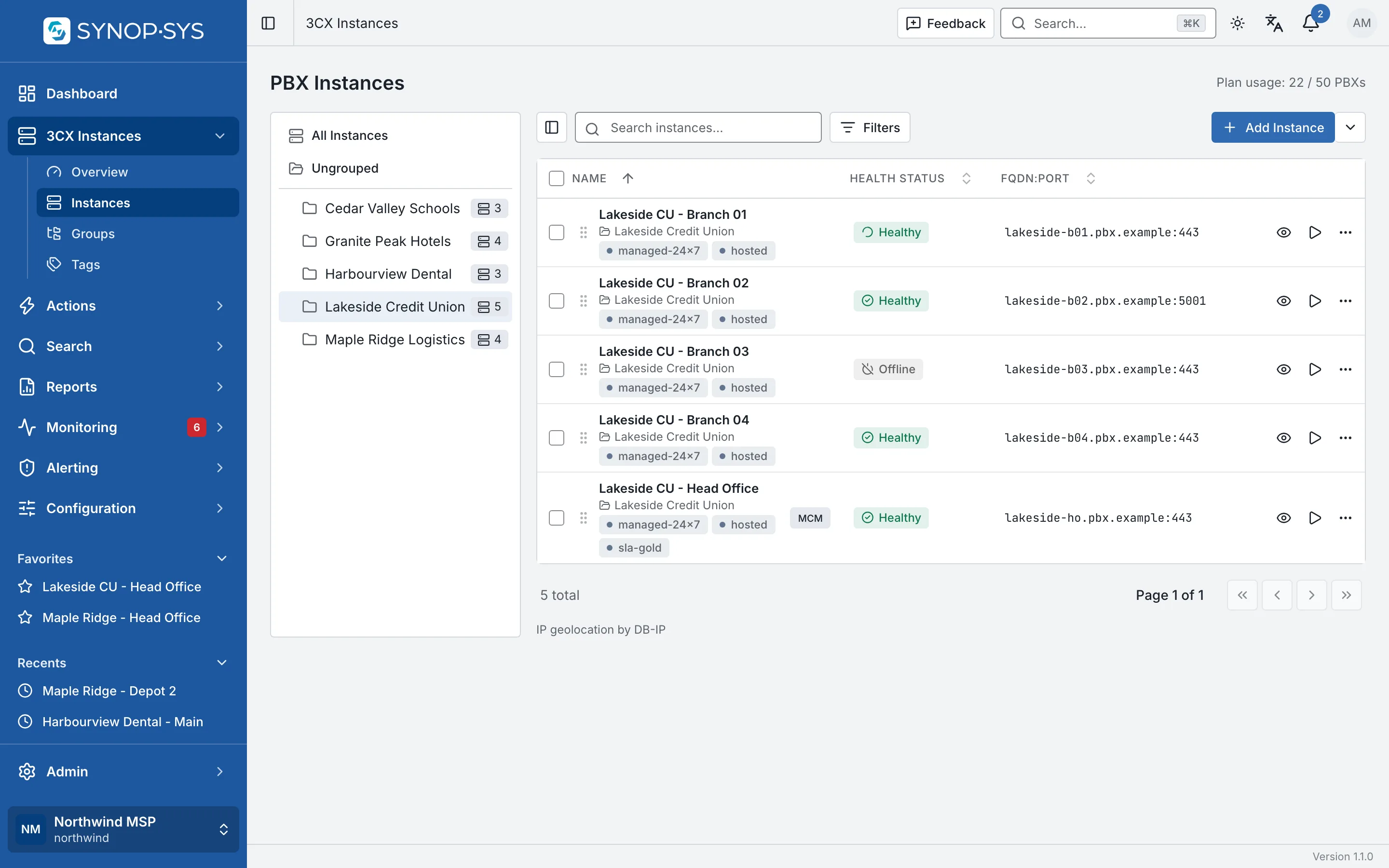
The instances table with a group selected; health, FQDN and tags per row. The instances table with a group selected; health, FQDN and tags per row.
The instances table with a group selected; health, FQDN and tags per row.Open full imageOpen full image

Monitoring

Move From a Condition to a Response

Built-in alerts cover common operational problems. With the Monitoring module, add custom policies, configure escalation and on-call schedules, and review monitoring reports.

  • Alert detail with evidence, lifecycle and SLA status
  • Incidents with timeline, owner and notes
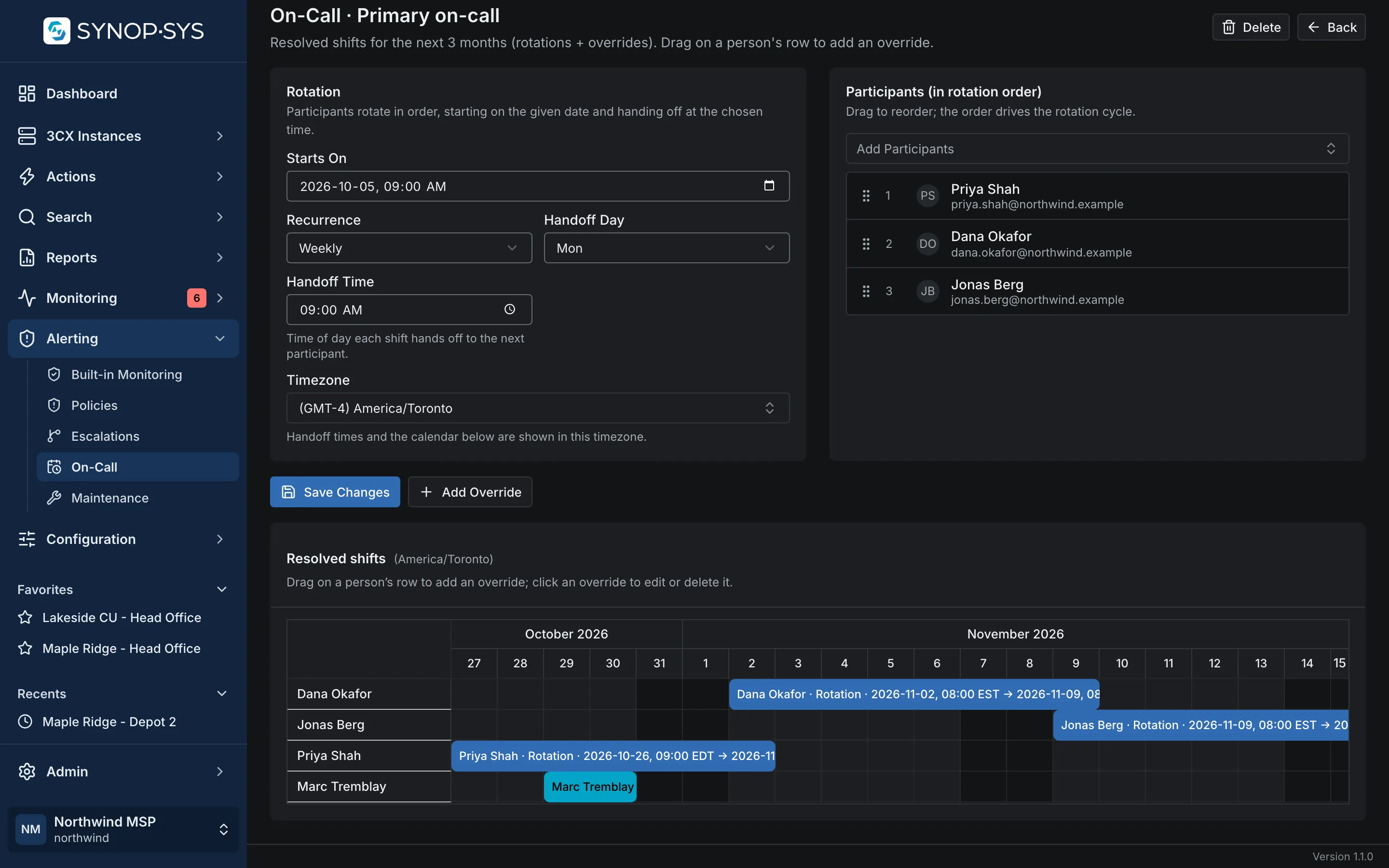
  • On-call rotations, overrides and escalation steps

Explore monitoring

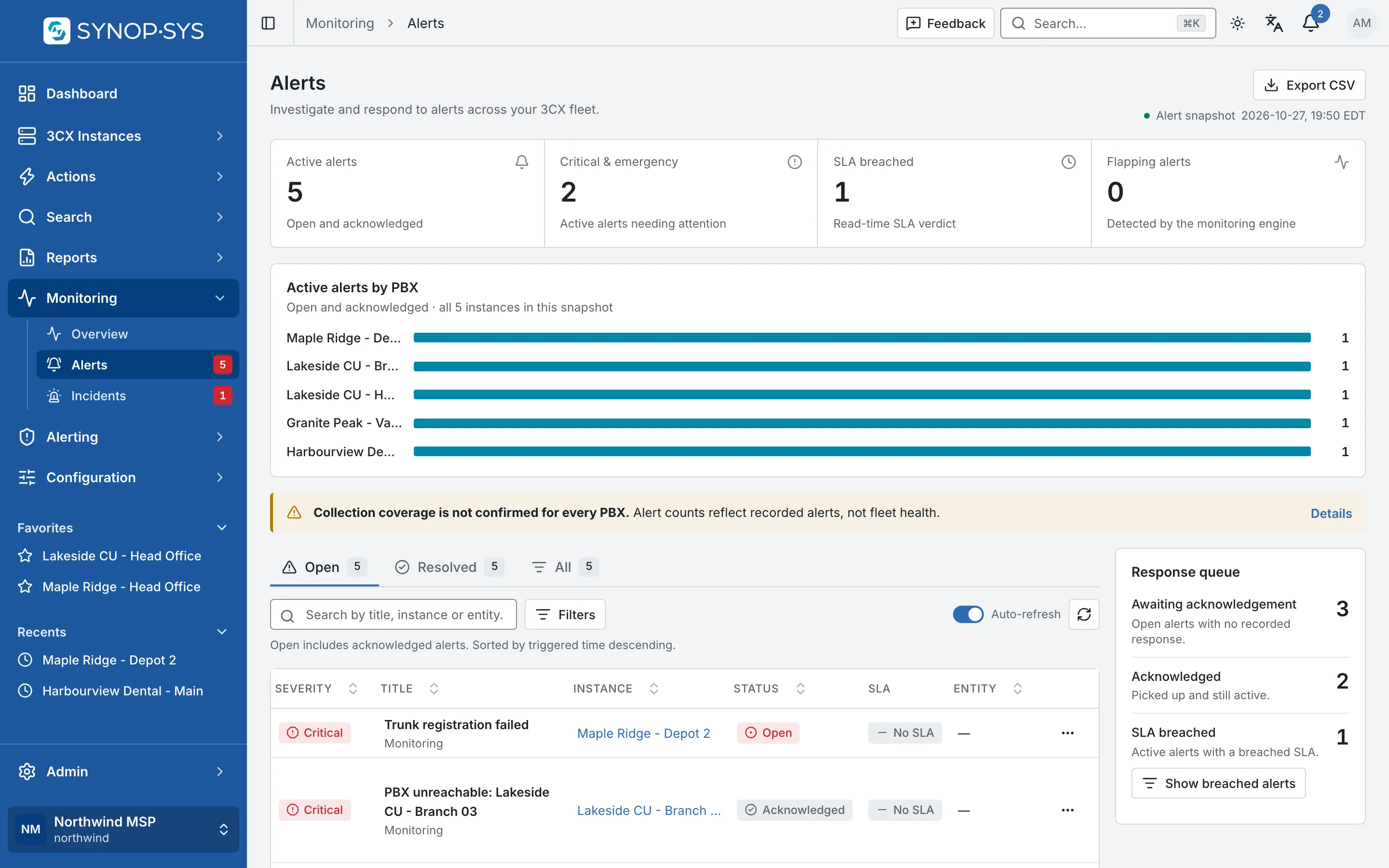
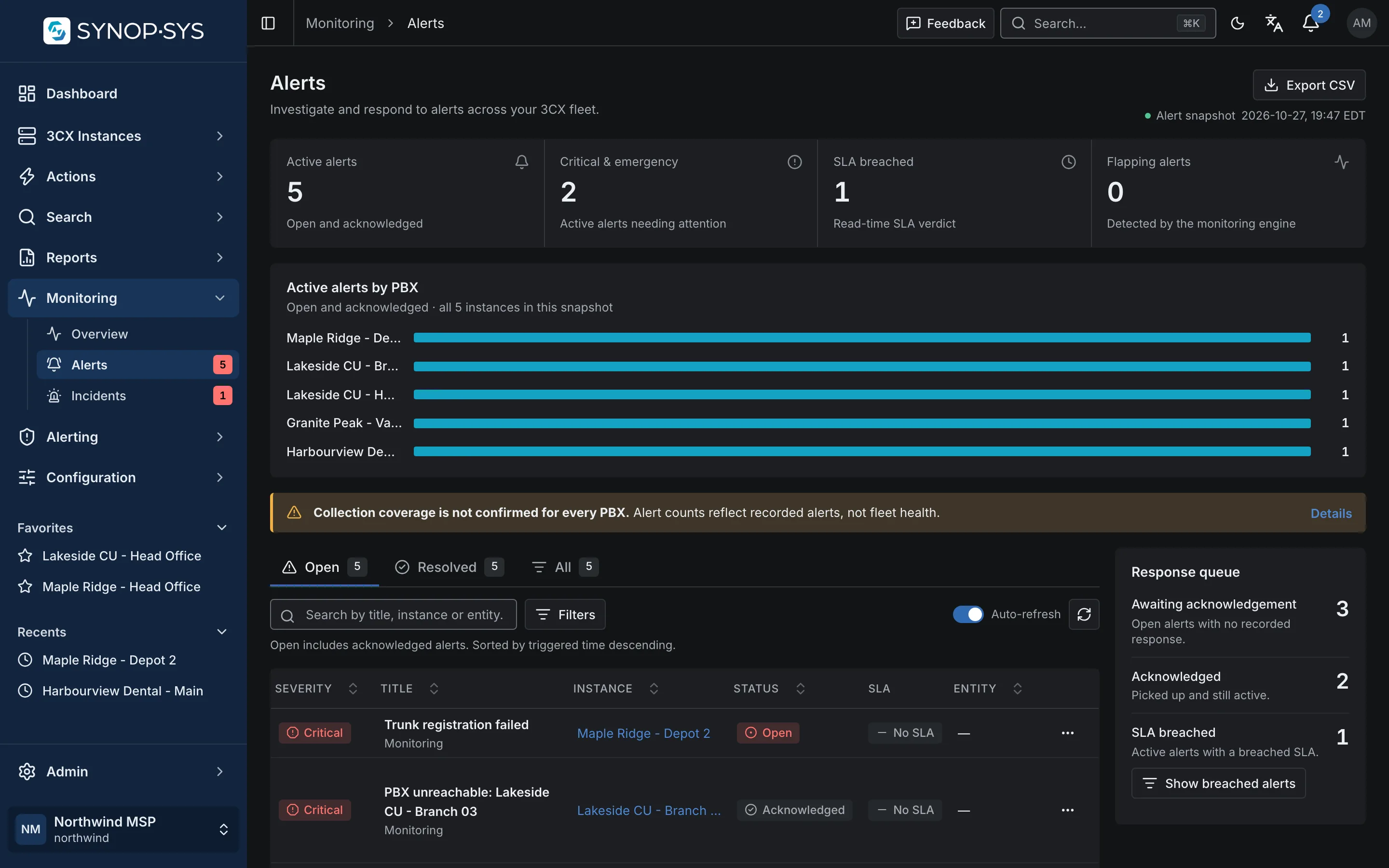
The alerts list: five open alerts across five PBXs, by severity. The alerts list: five open alerts across five PBXs, by severity.
The alerts list: five open alerts across five PBXs, by severity.Open full imageOpen full image
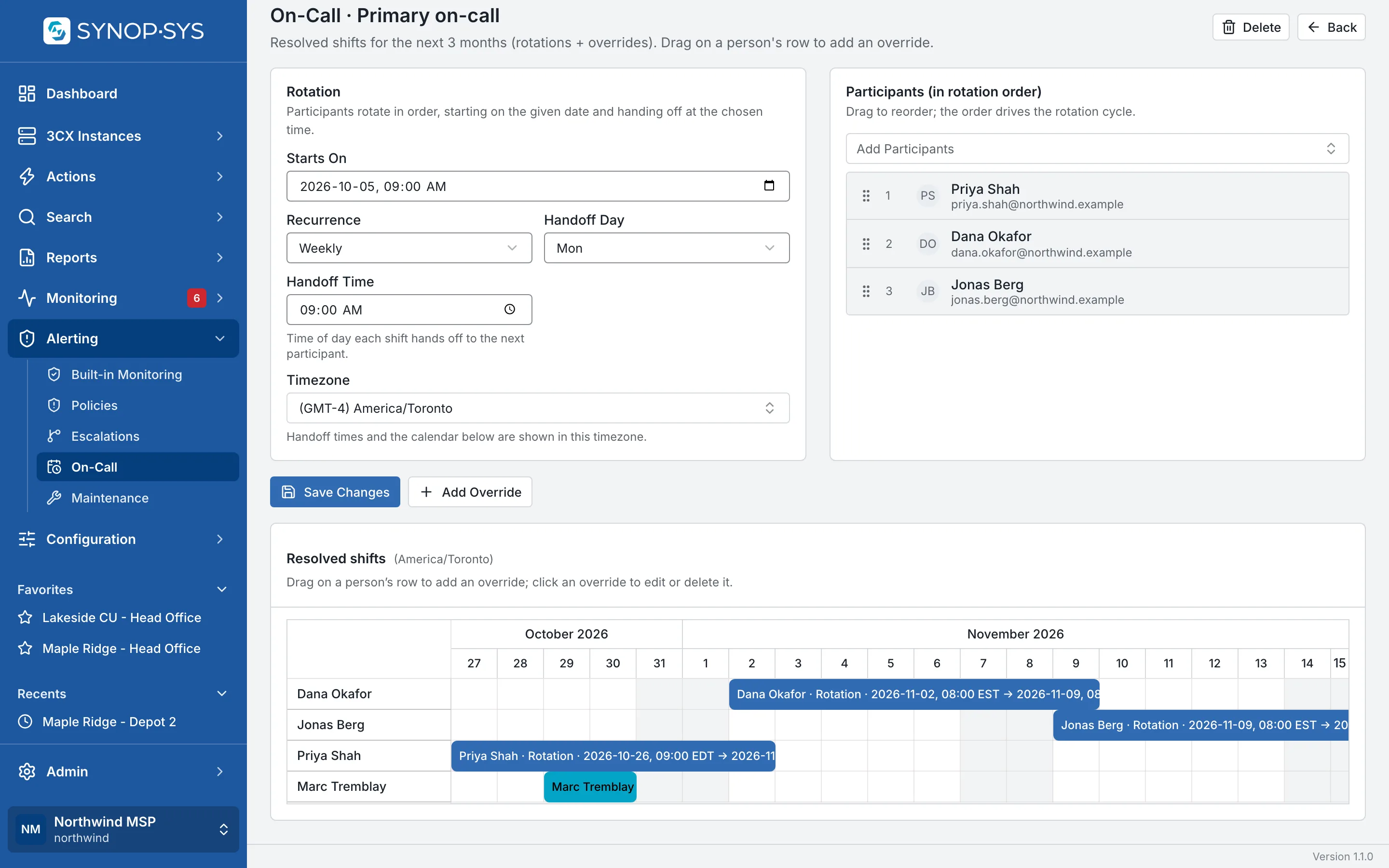
An on-call schedule: a weekly rotation with one override on the calendar. An on-call schedule: a weekly rotation with one override on the calendar.
An on-call schedule: a weekly rotation with one override on the calendar.Open full imageOpen full image

Choose the Right Kind of Change

Edit selected objects inside one instance, run a batchable action across PBXs, or apply a reusable configuration template. Schedule supported actions when the work should recur.

Kind of changeWhere you selectWhat runsWhat you get back
Per-instance bulk actionUsers, phones or other supported objects inside one PBXA specific operation, such as Set Outbound Caller ID or Edit IP Phone OptionsA result per object; the selection never leaves that PBX
Fleet actionPBXs in the fleet table, or a scope of instances, groups and tagsA batchable action such as Run Backup or Reboot PBXOne result per PBX, grouped as a batch in Run History
Template applyInstances, groups or tags, with values for the template’s variablesThe managed configuration, per targetPer-instance outcomes, including fields a target could not accept
Scheduled actionA saved target scope and a recurrenceOrdered actions, in rolling batches if you chooseA run history with the outcome of every stage and target
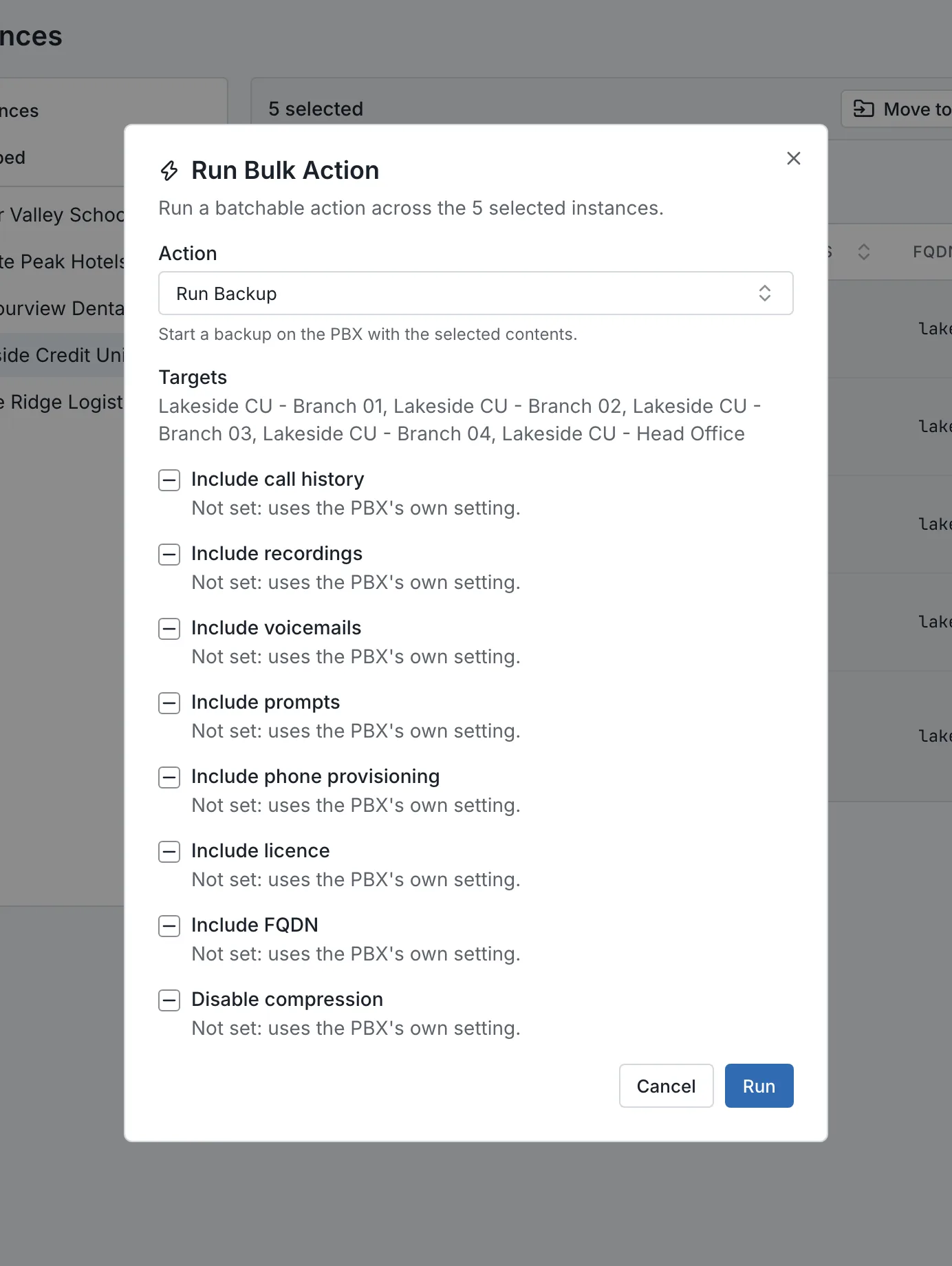
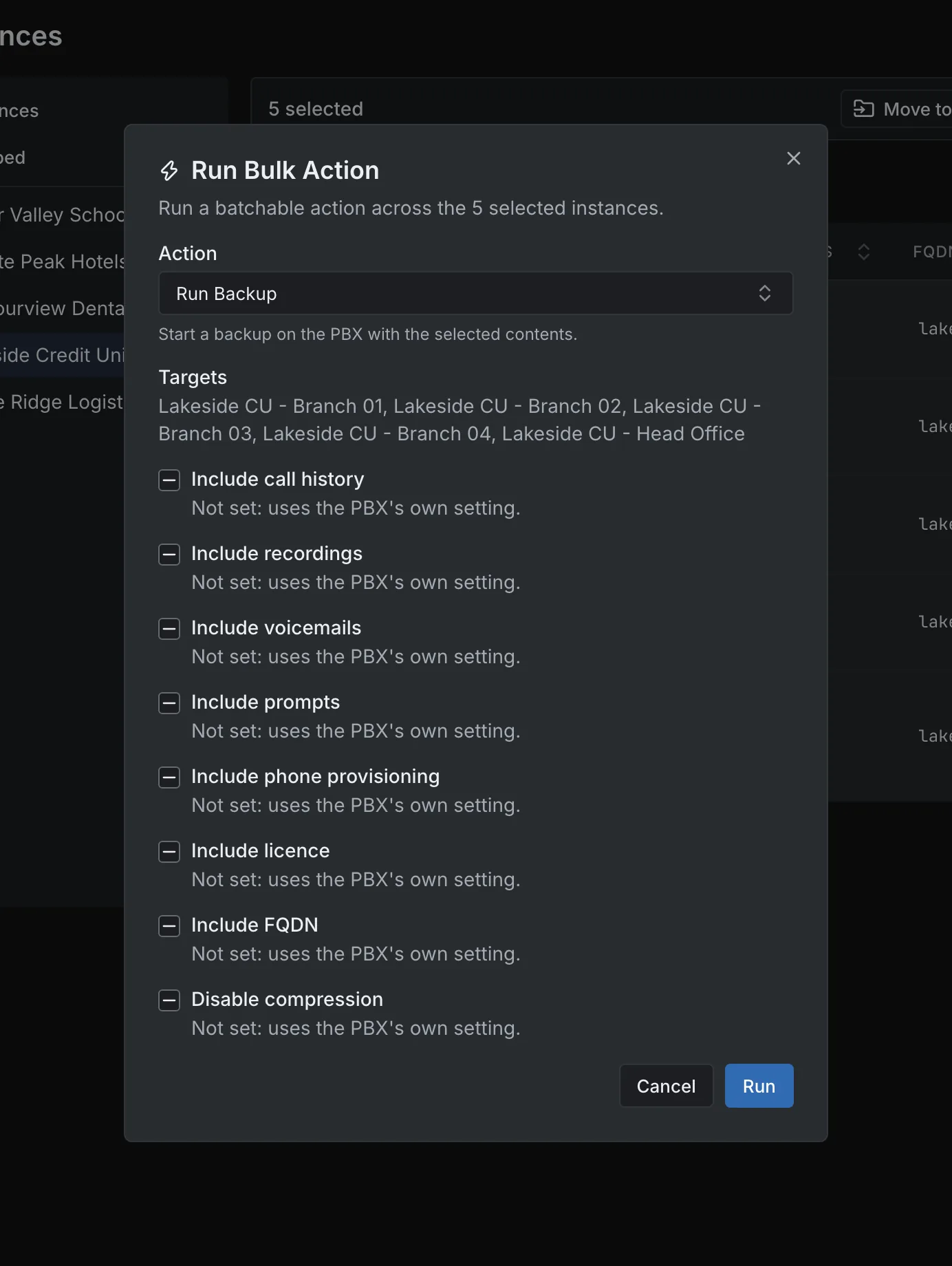
Run Bulk Action across five selected PBXs: the action, its parameters and the targets. Run Bulk Action across five selected PBXs: the action, its parameters and the targets.
Run Bulk Action across five selected PBXs: the action, its parameters and the targets.Open full imageOpen full image
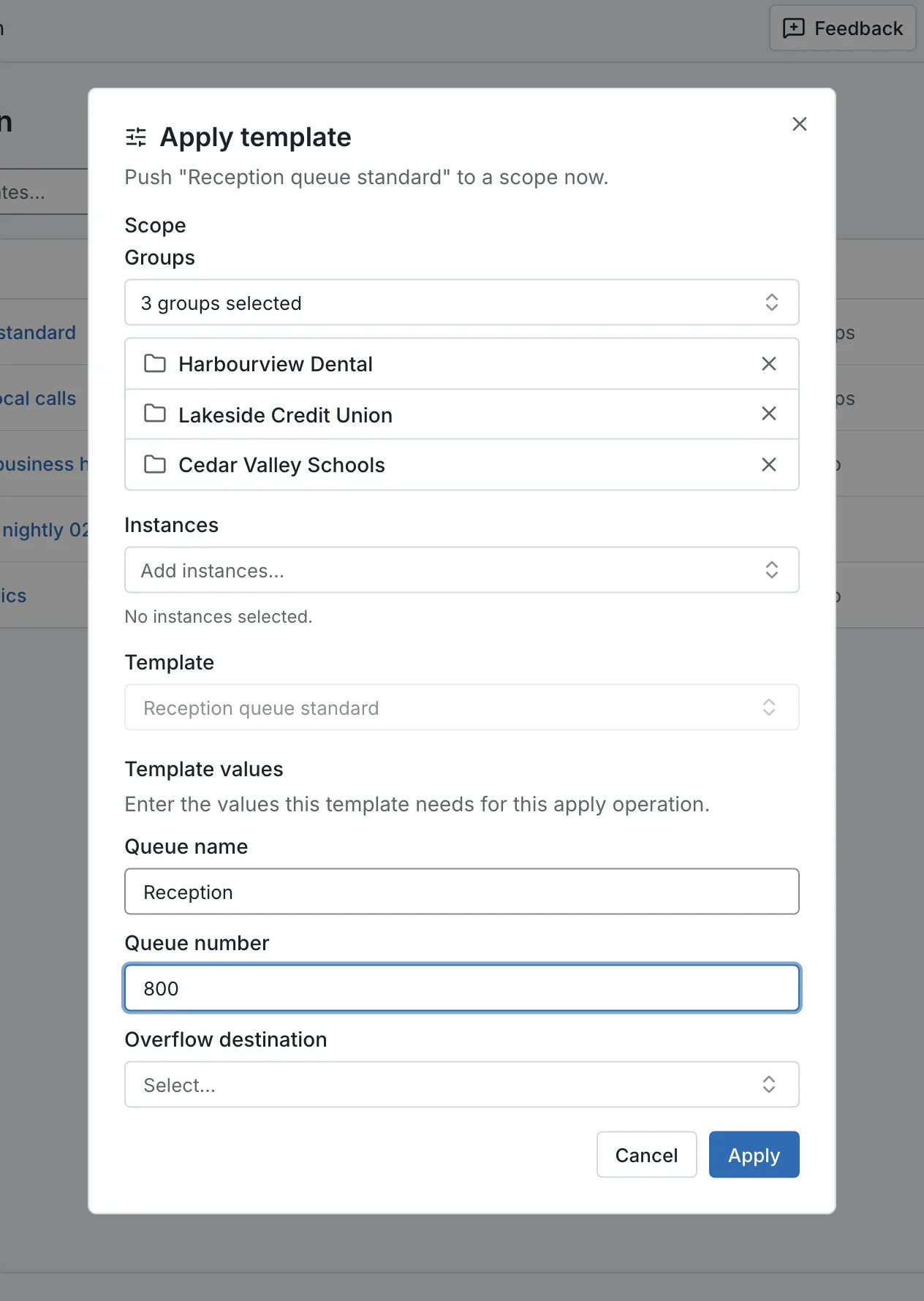
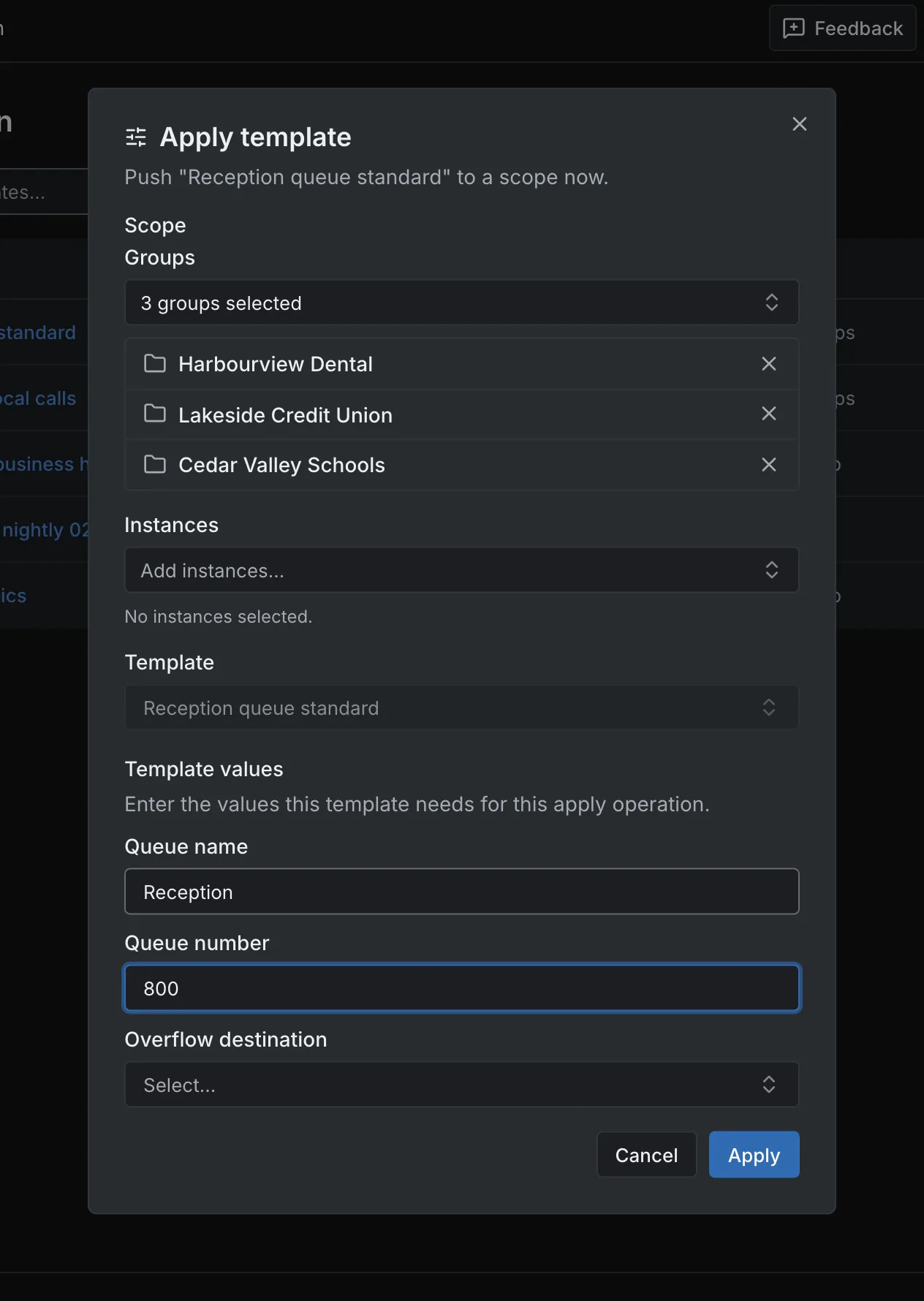
Applying a template to a scope: the targets and the variable values are visible before anything runs. Applying a template to a scope: the targets and the variable values are visible before anything runs.
Applying a template to a scope: the targets and the variable values are visible before anything runs.Open full imageOpen full image

Explore bulk actions     Explore configuration

Connection

Connect Through the 3CX API

Add a PBX using its supported credentials; the connection is tested before the instance is saved. Available operations depend on the PBX version, its capabilities, your permissions and your plan. SYNOP•SYS does not replace every function of the 3CX console; it brings the fleet-level work and the common per-instance work into one place.

  • Client credentials or a system-owner account
  • Credentials encrypted at rest; never shown again in routine screens
  • Fields that exist only on some 3CX versions are gated by version

Read the connection guide (sign-in required)

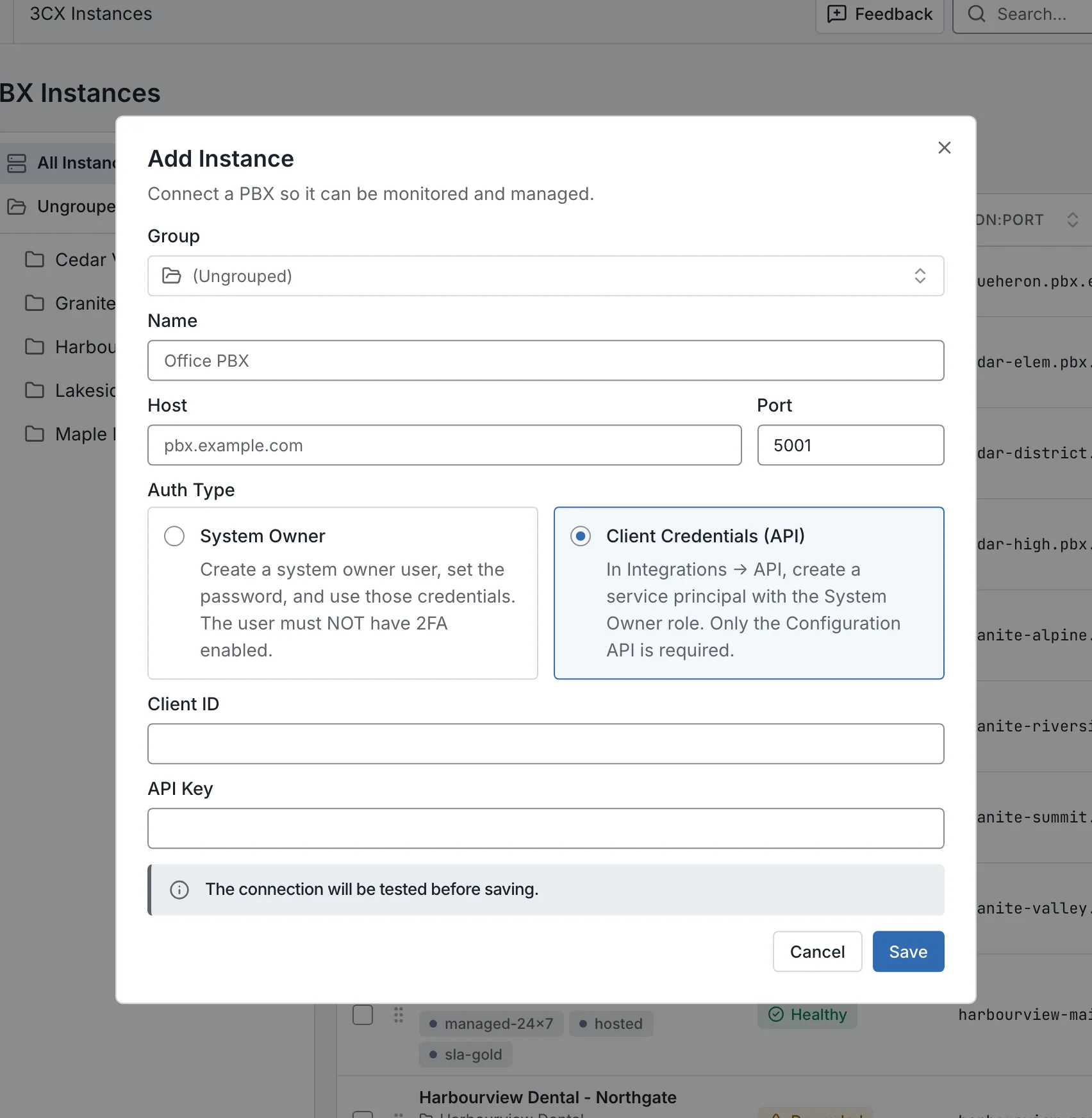
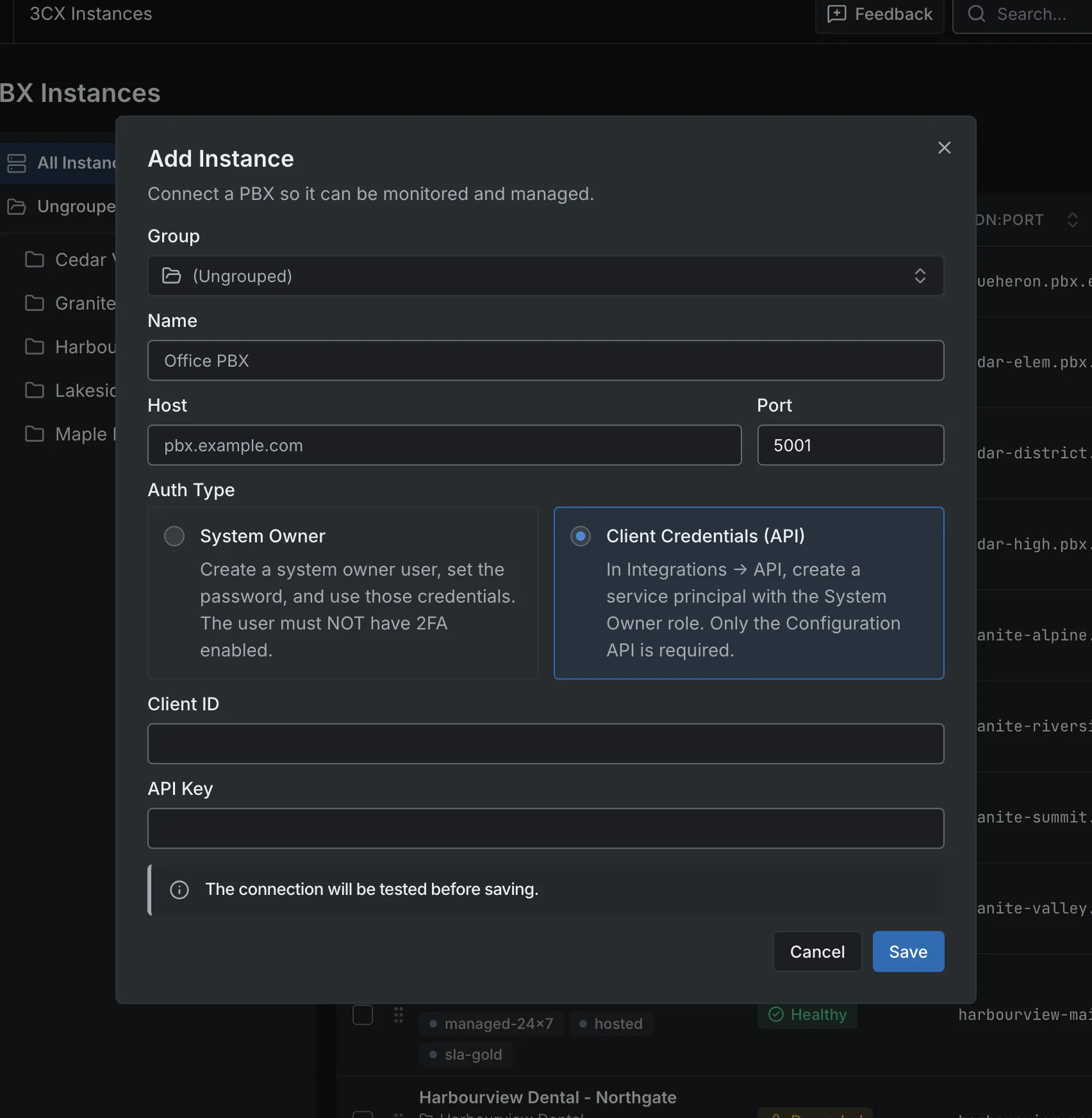
Add Instance with client credentials selected and empty credential fields. Add Instance with client credentials selected and empty credential fields.
Add Instance with client credentials selected and empty credential fields.Open full imageOpen full image

See It With Your Own Fleet

Request access and we will discuss the plan and the workspace setup that fits.